06/11/2025 Release: Submittal updates, Mix Design GWP, TestIn AI, etc.
- Submittals: Graph Mix Strength vs. W/CM
New checkbox option to include the Mix Strength vs. W/CM (3-point curve) graph in submittal reports. - Submittals: Save as New
When saving a submittal as new, users have the option to use latest mix recipes from Quadrel or keep existing for submittal mixes. - Mix Design: GWP
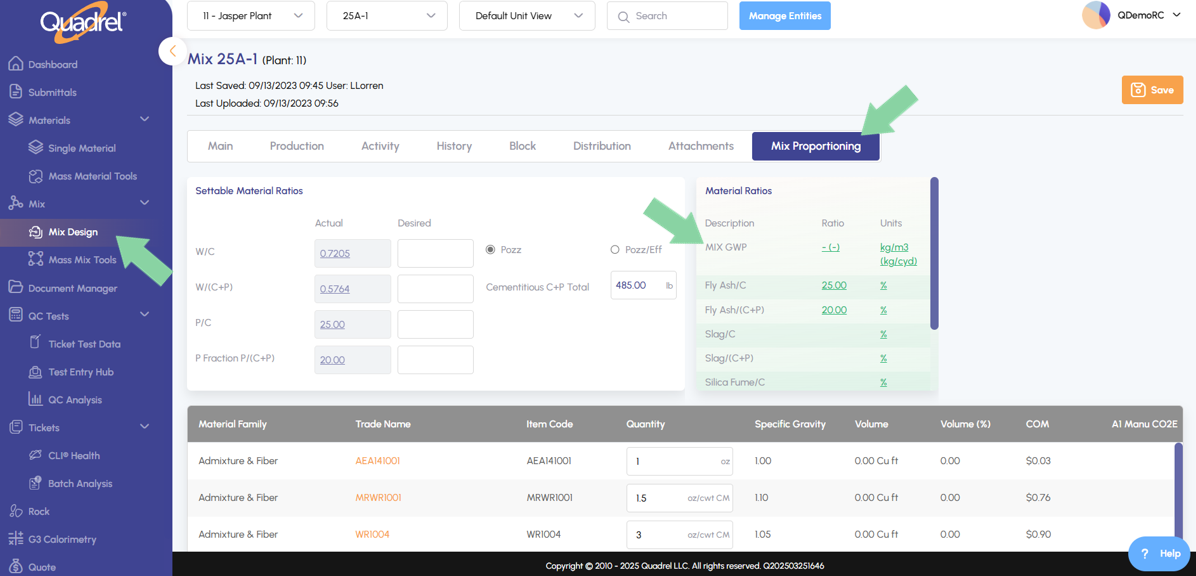
Mix GWP added into material ratios when applicable on the mix proportioning tab. - Test Entry Hub: Due or Overdue
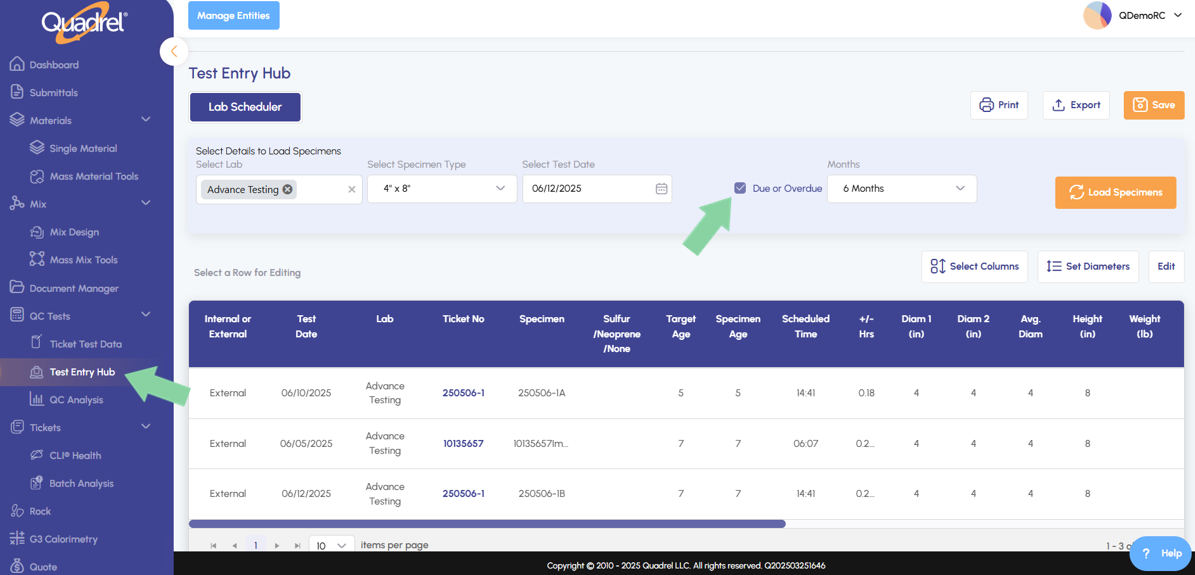
Option for due or overdue test where users can specify the date range to search. - TestIn AI
Reduce manual work and save time with TestIn AI, automatically read in PDF formatted test data into Quadrel. - Ticket Test Data: Test Report
Generates the user a test report based on the specified ticket.
Submittals: Graph Mix Strength vs. W/CM.
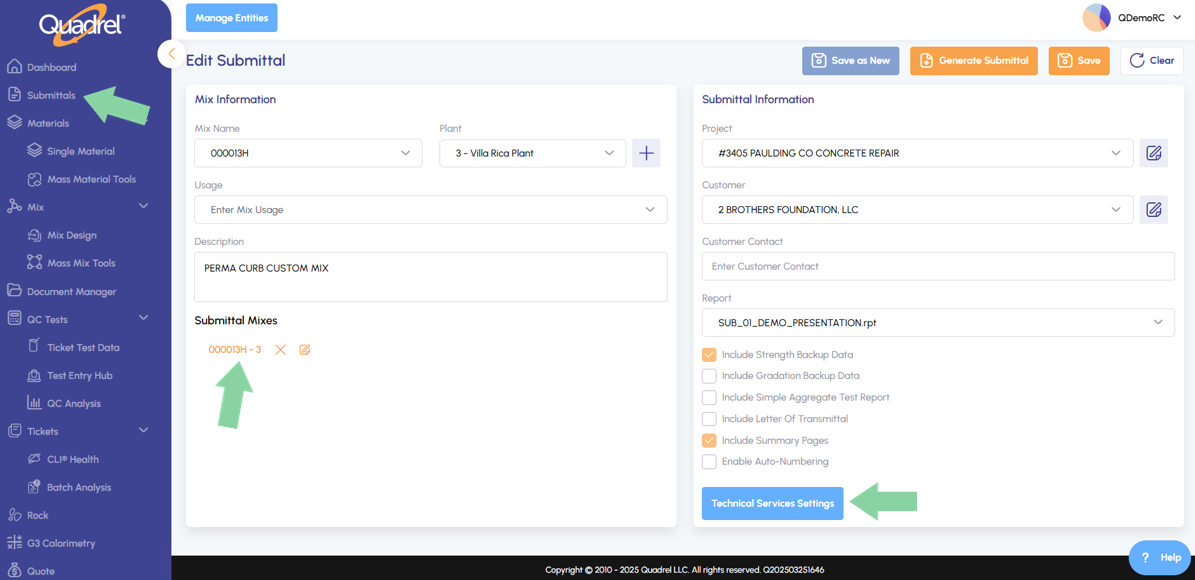
Go to the submittals page and then click to edit an existing submittal or create new. On the edit submittal page, select the submittal mix, and then click technical service settings.
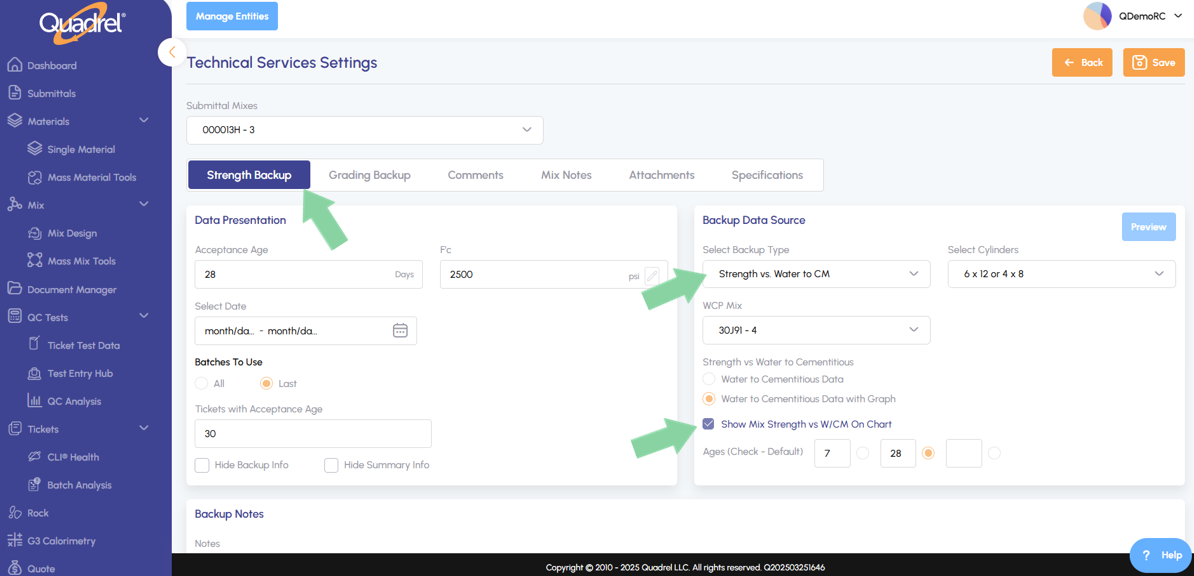
Technical service settings will load, and users can select the backup type "Strength vs. Water to CM" backup type, also known as the 3-point curve. The new feature is the checkbox "Show Mix Strength vs W/CM On Chart" to graph this data in submittal reports.
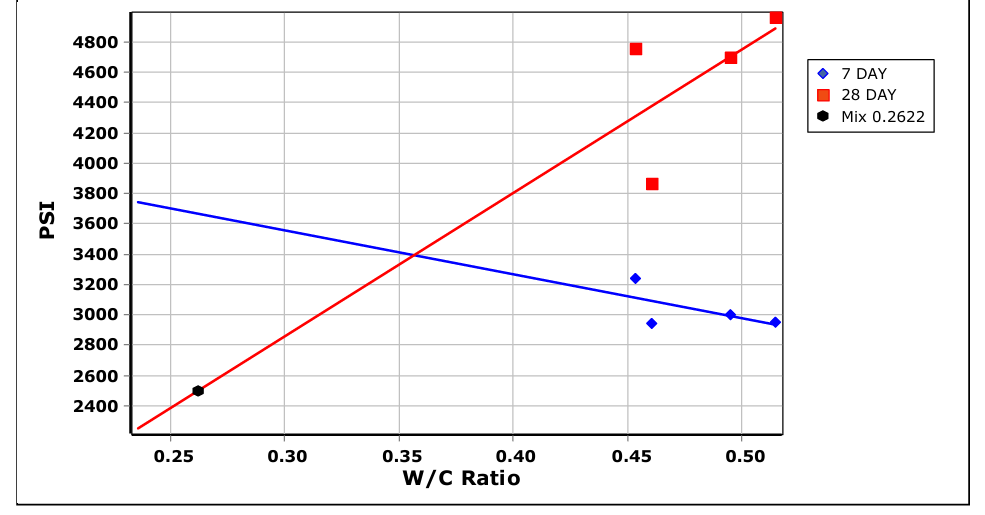
When generating the submittal with this option selected, users will now see the corresponding Strength vs. Water to CM (3-point curve) graph included in the report.
Submittals: Save as New.
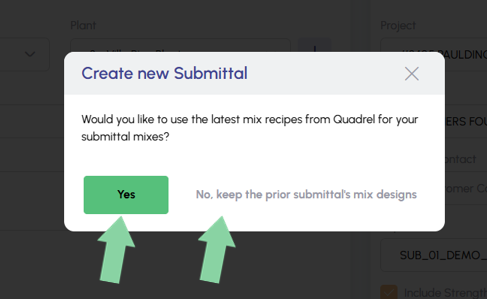
Go to the submittals page and then click to edit an existing submittal. On the edit submittal page, users can now click save as new and be asked, "Would you like to use the latest mix recipes from Quadrel for your submittal mixes?"
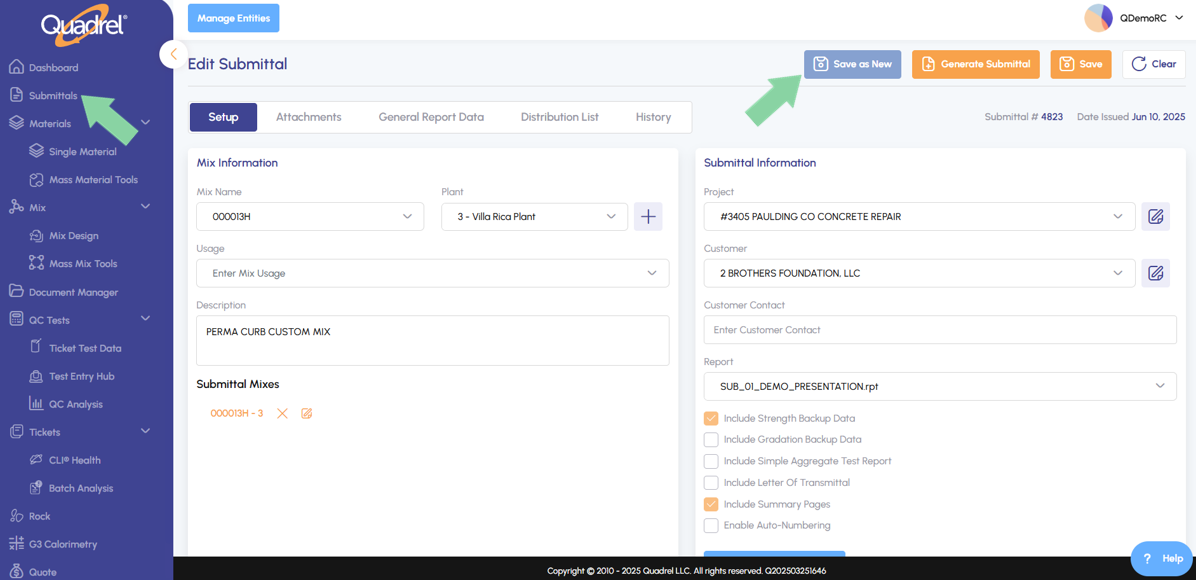
- If the user clicks yes, Quadrel will use the latest mix recipes for the submittal mixes.
- If the user clicks no, Quadrel will keep the prior submittals mix designs.
Mix Design: GWP.
When viewing a mix, users can now switch to the Mix Proportioning tab and view the Mix GWP in the material ratios.
Test Entry Hub: Due or Overdue.
Users can now check the Due or Overdue box to filter test accordingly by a range of 1 to 6 months.
- Select a lab, specimen type, and test date.
- Click the checkbox Due or Overdue and the desired month range.
- Click the load specimen buttons to load the table below accordingly.
TestIn AI.
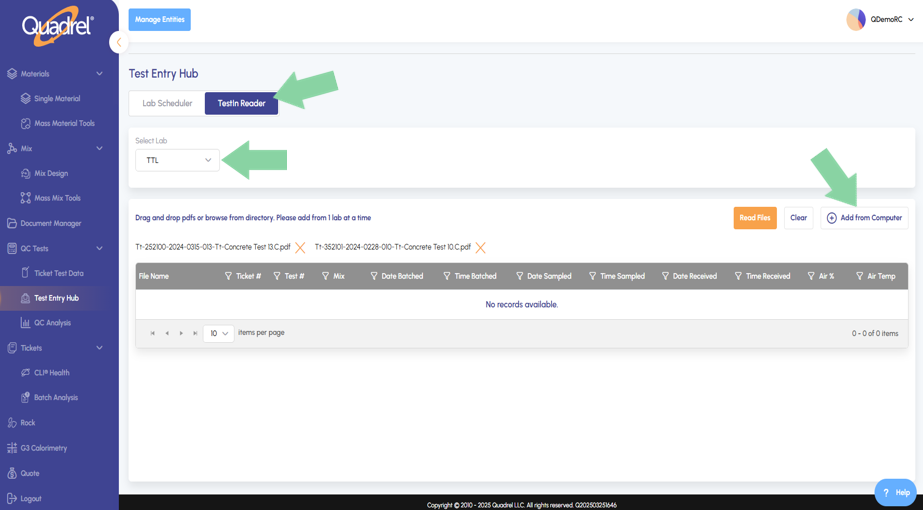
In Test Entry Hub, switch to the new TestIn Reader tab. Users can now select a lab and read in test data from a PDF file. Click the button, add from Computer or drag and drop to load in test data PDF files. In the example below, 2 test data files have been uploaded.
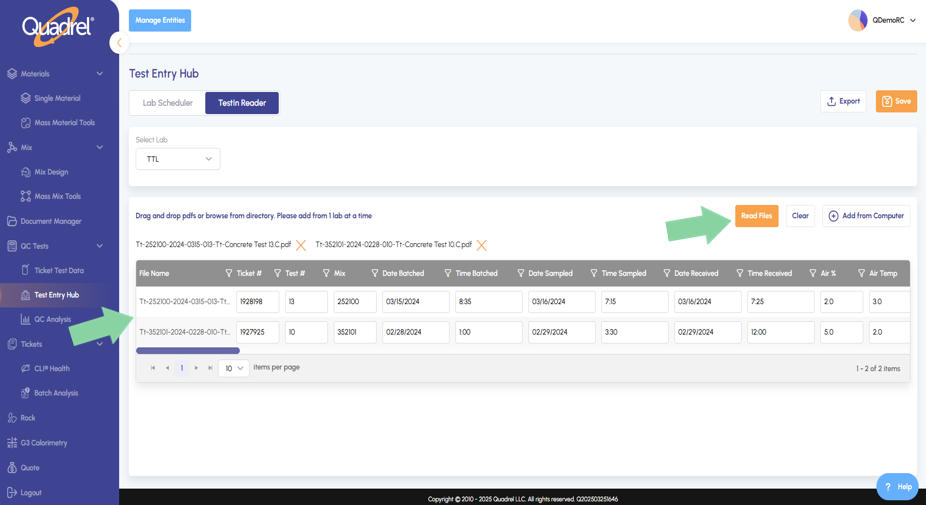
Once all test data files have uploaded, click the Read Files button to begin the automatic upload of test data into Quadrel. When the data is uploaded, review and click save when done.
Ticket Test Data: Test Report.
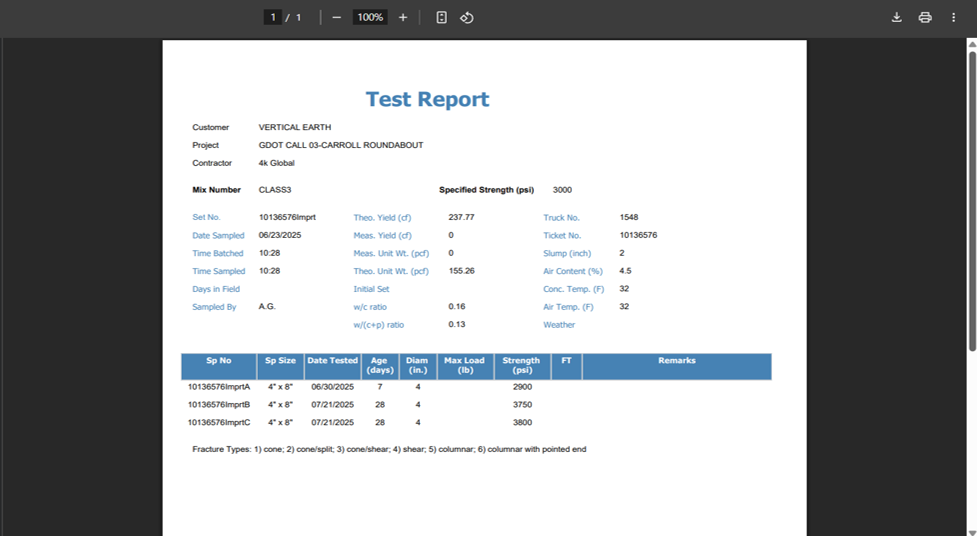
Visit the Ticket Test Data tab and select a ticket. On all tabs within the ticket users now have an option to generate a Test Report if applicable for the selected ticket.
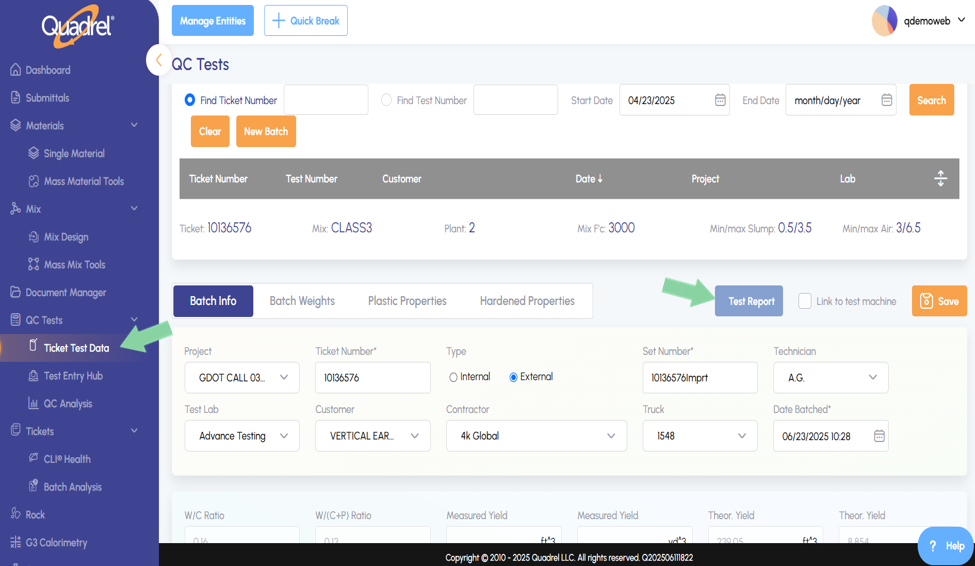
After clicking the Test Report button, the report will generate as a PDF file and be placed in the users download folder. An example of a test reports output is shown in the screenshot below.