10/17/2025 Release: User Interface Improvements, Mass (De)Activate, TestIn AI, etc.
UI Improvements: Data Grids User interface enhancements have been applied to all data grids across web Quadrel QC and Calorimetry tools.
Create Saved Advanced Searches Saved searches made on the web can now be used as backup data in submittals using web Quadrel.
Mix Design: Q-AI Strength Curve and Carbon Users with organizational access will now see Q-AI Strength Curves and Carbon data as dropdown options, providing more workspace on the mix design page.
Mass Mix Tools: Mass DeActivate The Mass (De)Activate feature is now available in web Quadrel. Note that currently the mass mix deactivate feature is limited to the Quadrel software and does not push to Dispatch.
TestIn AI: Improvements Several improvements have been made to TestIn AI's functionality and user interface.
UI Improvements: Data Grids.
User interface enhancements have been applied to all data grids across the Quadrel QC and Calorimetry web tools.
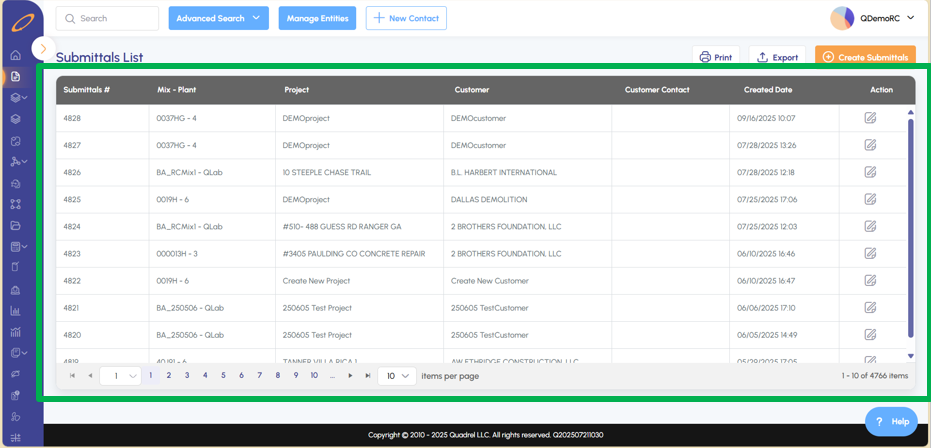
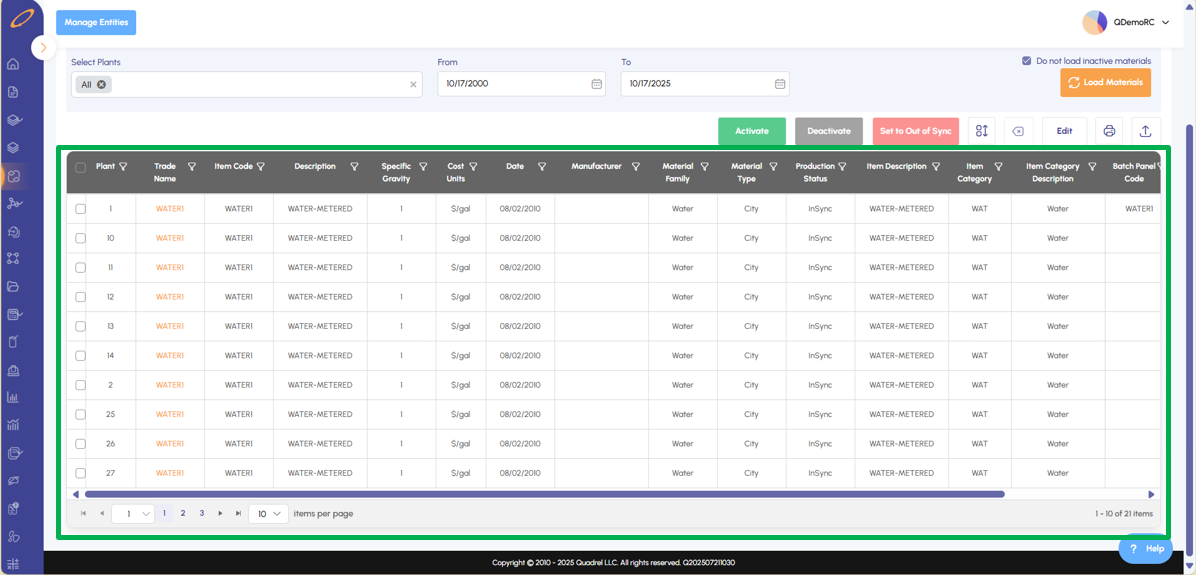
The screenshots below illustrate two examples of the many locations within web Quadrel where users will see the updated grids.
Example 1: Submittals
Example 2: Mass Material Tools
Create Saved Advanced Searches.
Users had the ability to create and save searches within the advanced search tool. Saved searches can now also be used as backup data in submittals.
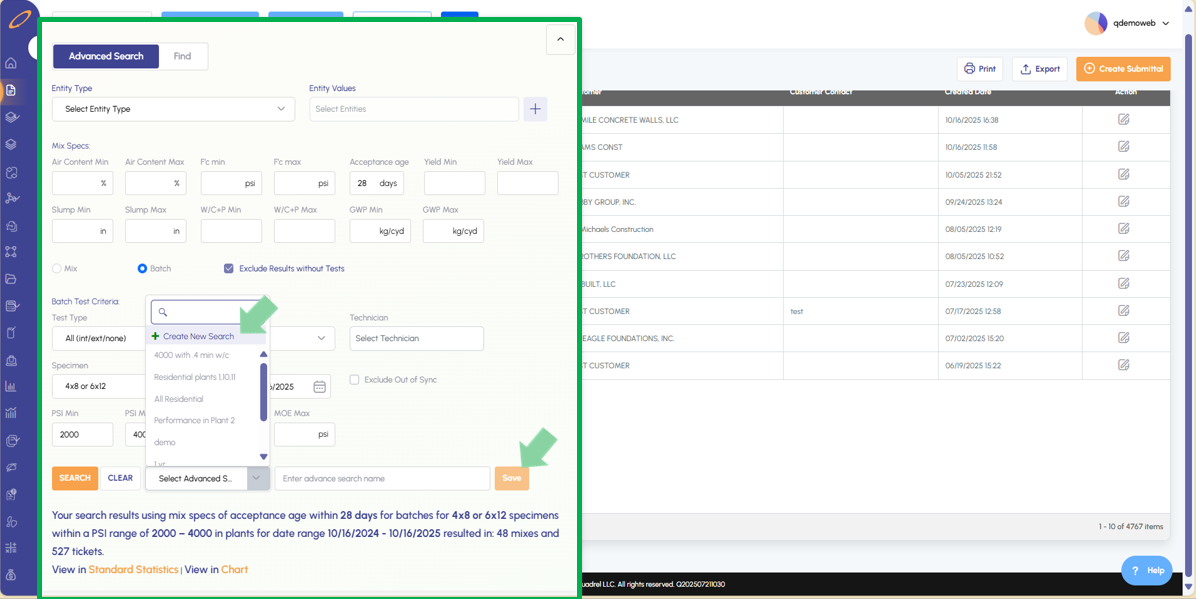
In Advanced Search, first populate the form with the desired search criteria wished to be saved.
Click the search button to test the search criteria, if results are as expected, continue with the next step.
In the dropdown menu shown below, select “Create New Search.” You will then be prompted to enter a name for your advanced search. Enter the desired name and click Save.
Users can then access saved searches from the "Select Advanced Search" dropdown menu.
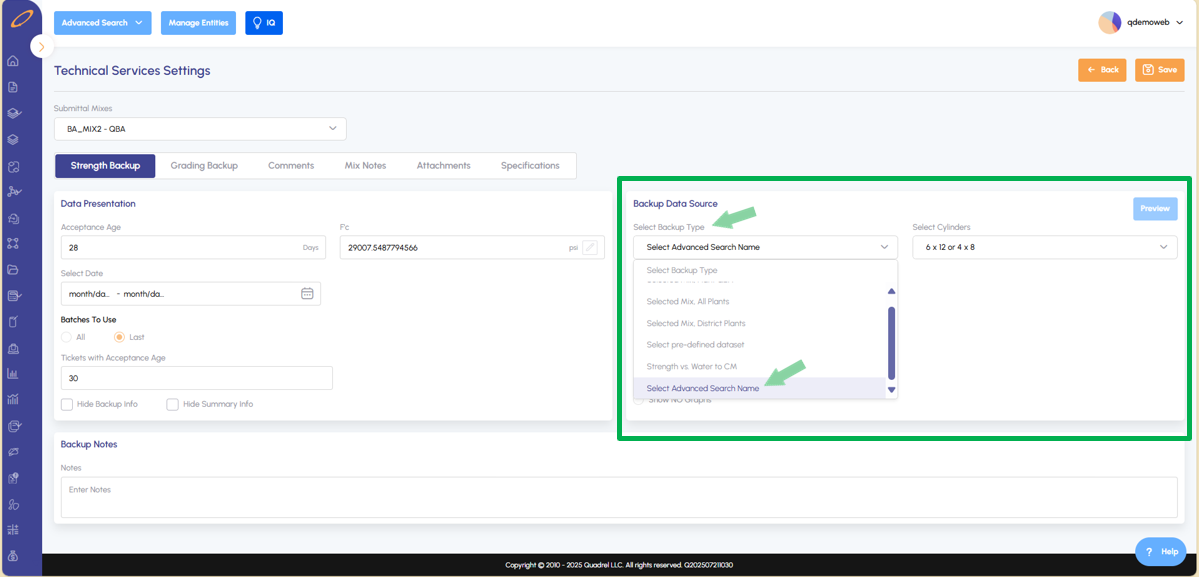
To include the Advanced Search results in submittals, users should navigate to the submittals page and access the submittal editor. From here users can select their desired mixes and enter technical service settings.
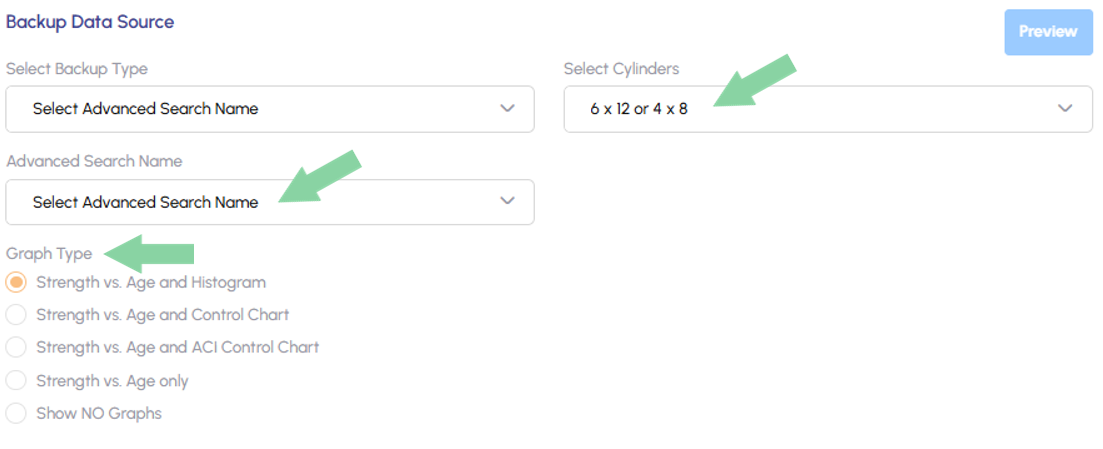
In the Select Backup Type dropdown box, select "Select Advanced Search Name".
You will see a new dropdown menu to select the desired saved Advanced Search, Cylinder Types, and Graph Type. After selecting, be sure to click Save.
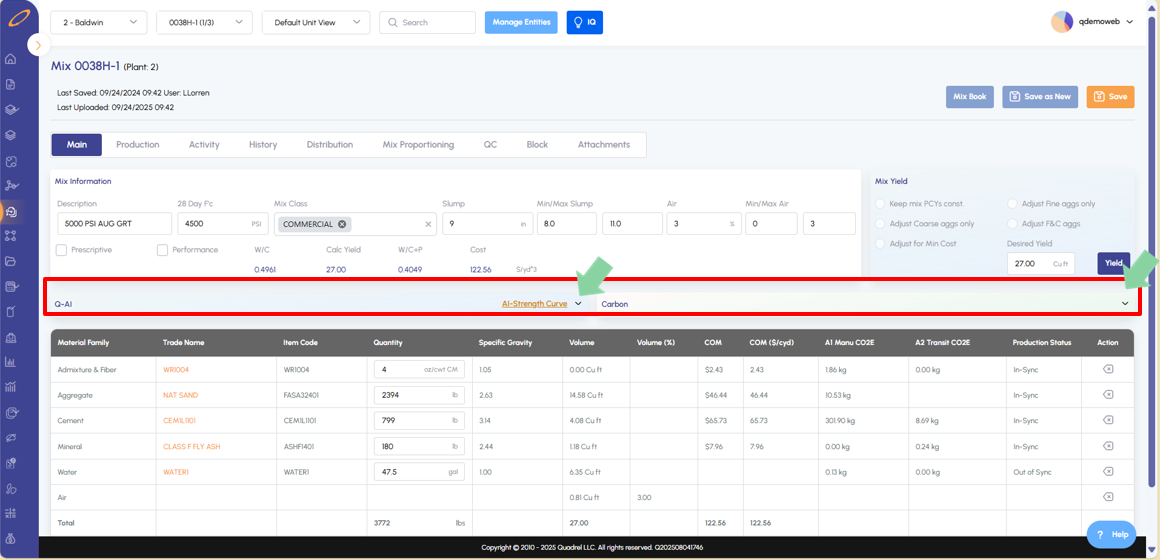
Mix Design: Q-AI Strength Curve and Carbon.
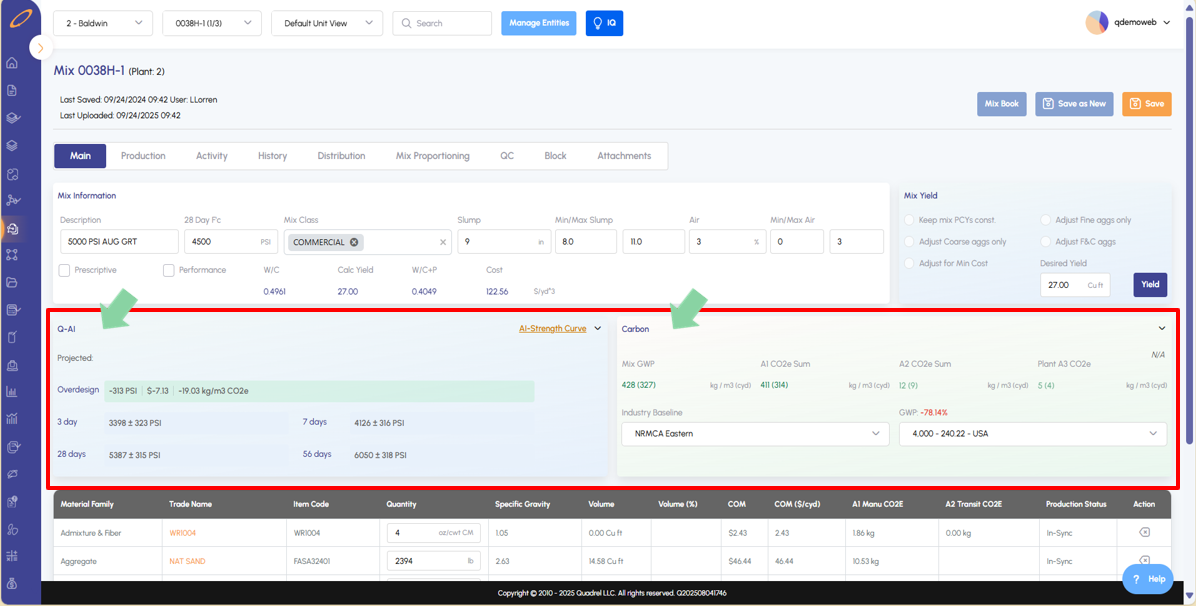
Users with organizational access will now see Q-AI Strength Curves and Carbon data as dropdown options, providing more workspace on the mix design page.
Click the dropdown icons to expand the contents of both the Q-AI and Carbon containers.
The containers expand when clicked.
Mass Mix Tools: Mass DeActivate.
The Mass (De)Activate feature is now available in web Quadrel. Note that currently the mass mix Deactivate function is limited to the Quadrel software and does not push to Dispatch.
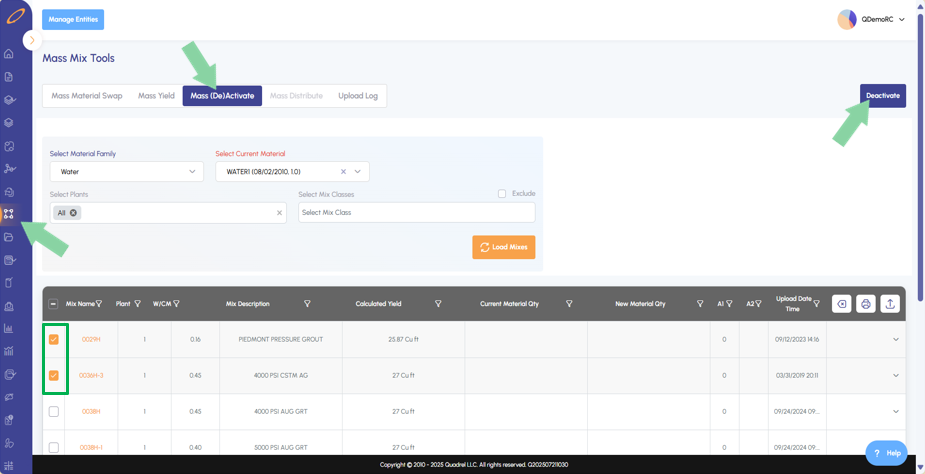
Navigate to Mass Mix Tools, then switch tabs to Mass (De)Activate. Load the mixes you wish to deactivate by selecting the materials and optionally the mix classes.
Click load mixes to fill the grid with related mixes from the selections previously made. Checkbox all mixes you wish to deactivate, then click the Deactivate button at the upper right of the page.
TestIn AI: Improvements.
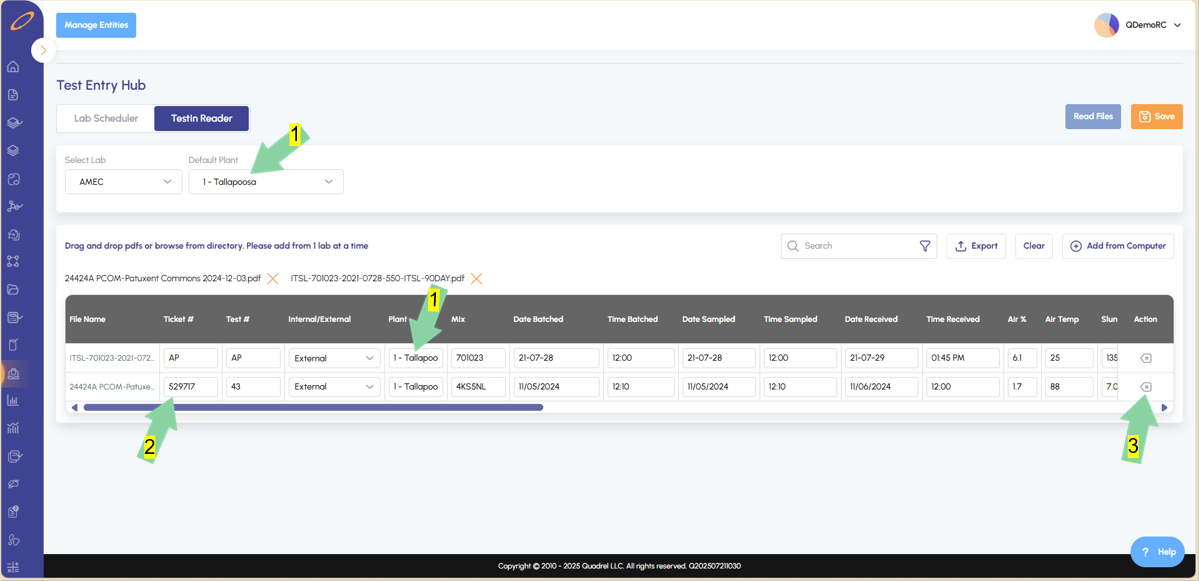
Many improvements have been made to the TestIn Reader page. The first four improvements are described below and labeled in the following screenshot. Continue reading to the end to see all changes.
Default plant: Select a default plant to automatically populate the select plant in each test file row after being read in. (This is for special cases of use)
The Ticket Number is now a frozen column, regardless of scrolling left or right, this column will remain in view.
The Action column is now a frozen column as well, regardless of scrolling left or right, this column will remain in view. Additionally, users can delete rows after being read in with the delete icon.
(Not Labeled): File reading now uses streaming, allowing the software to load each page individually. This significantly reduces load times when viewing data from a larger number of files.
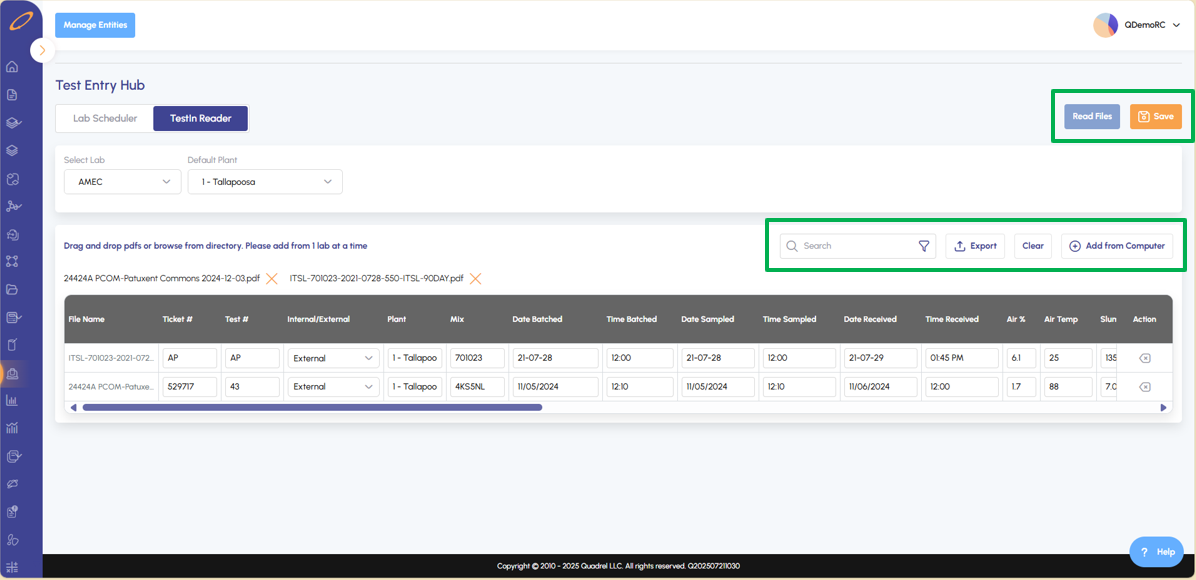
The following two improvements are related to the page functions layout
Read Files and the Save button are organized together.
The new search box, export, clear, and add from computer buttons are now organized together.
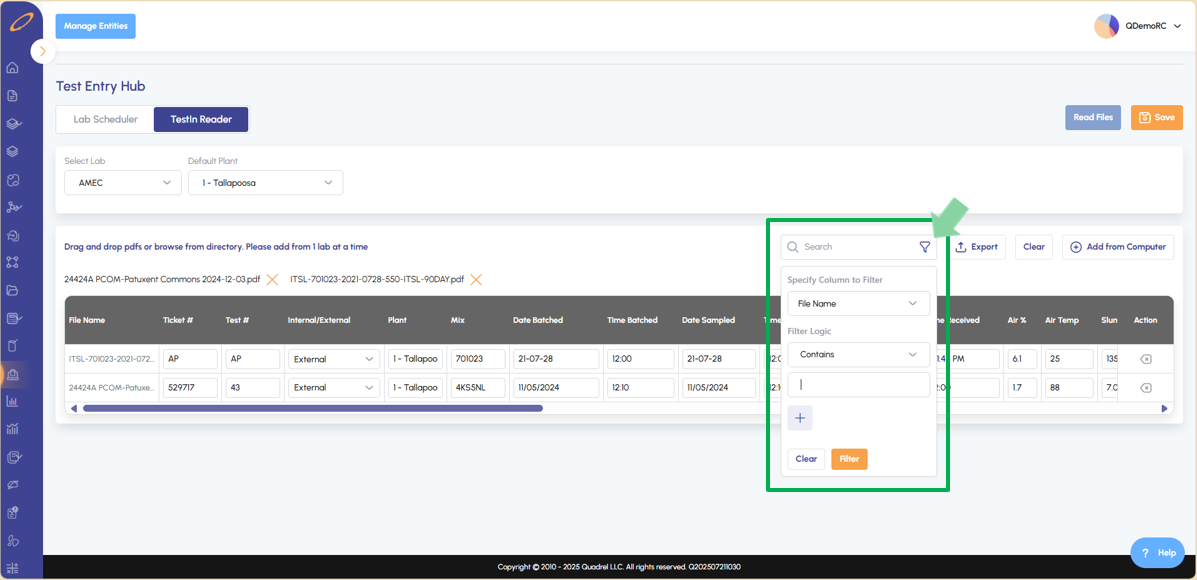
The following improvement allows the users to easily search through read in files.
Type in the search box to search by characters or click the filter icon shown below to open the filtering menu.
Users can filter by specific column or apply custom filtering logic.
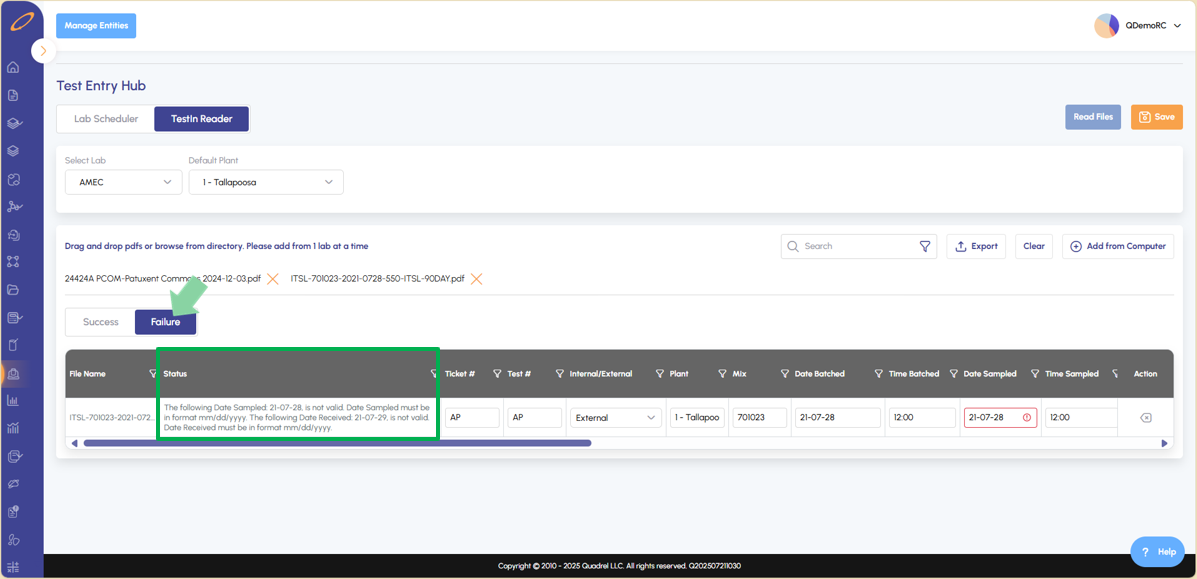
The last improvement is related to the failures tab. After clicking save, failures will be shown if detected.
The width of the status column has been increased to make viewing failures more simplistic.