11/13/2025 Release: Mix Spec, Material Hub, Average Grading, etc.
- mResolve: New Features and Improvements
New features have been added to mResolve in the web. Some existing features have been updated to become more user friendly and efficient. - Single Material: Best Fit and Least Cost
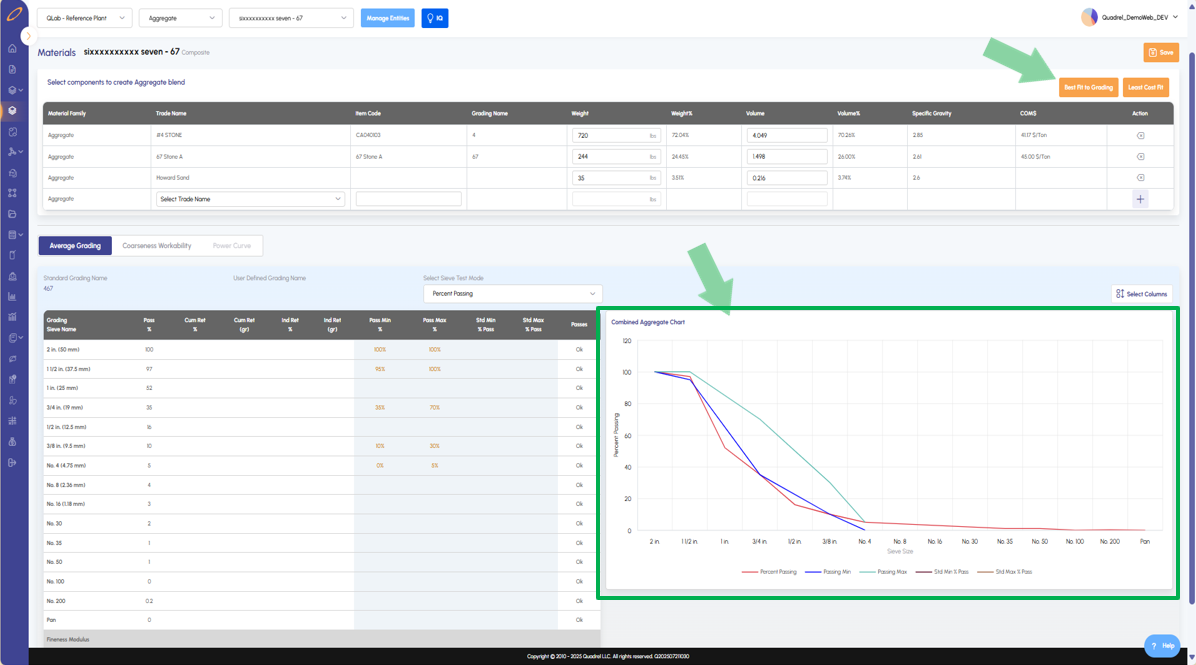
Users will now see two new buttons in the aggregate materials blending tab, Best Fit to Grading as well as Least Cost Fit. These buttons can be used to generate a corresponding chart based on user defined limits. - Single Material: Average Grading
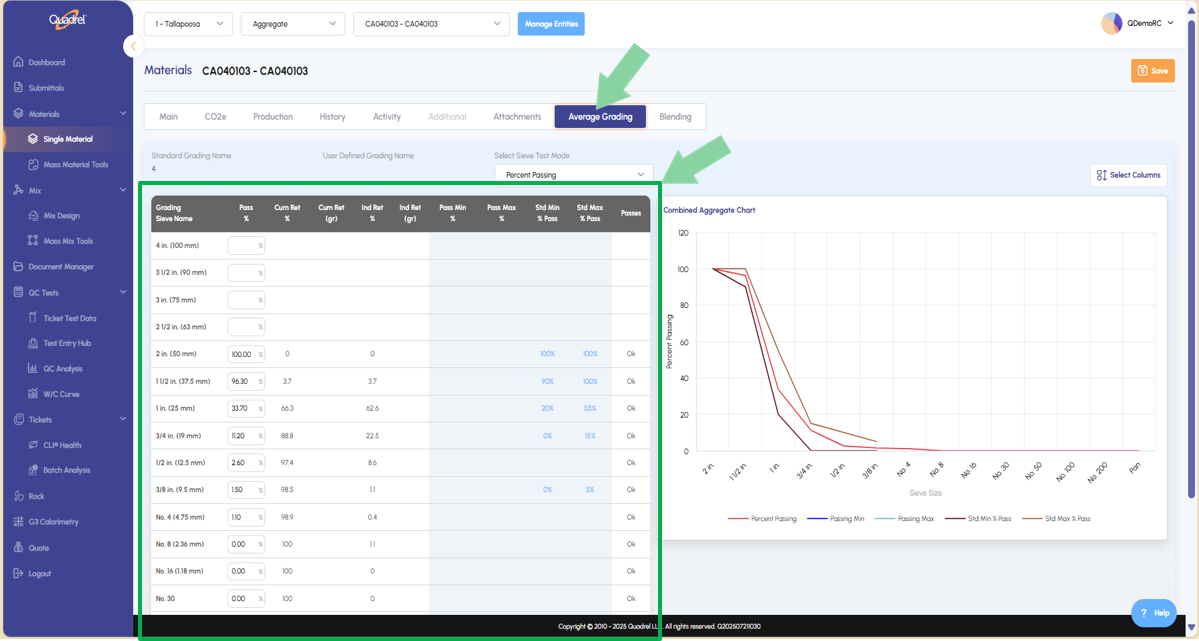
Users can now enter aggregate data in aggregate materials average grading tab. - Single Material: Material Hub
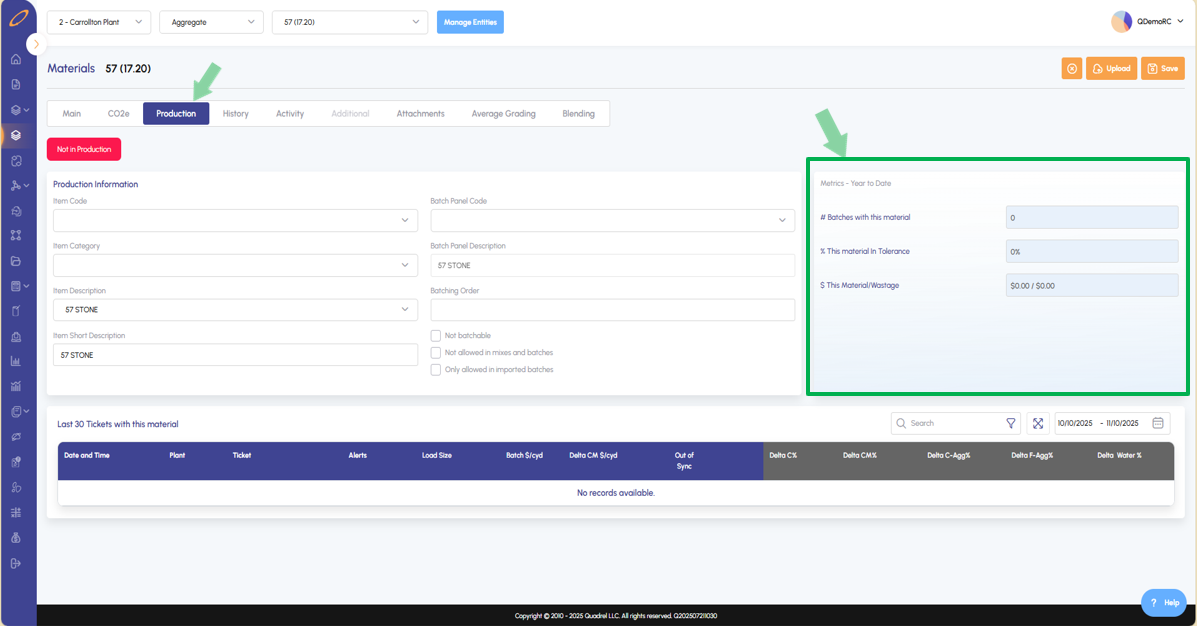
The material hub has been added to web Quadrel and can be found in the production tab of a material showing the tickets the material was in, it's % in tolerance, and $ wastage. It shows in the production tab. In the history tab users can scroll down to see material cost by year charted. Finally in the activity tab, users will be able to add comments to the material and export if desired. - Dashboard: Mix and Material Tile Shows the Plant
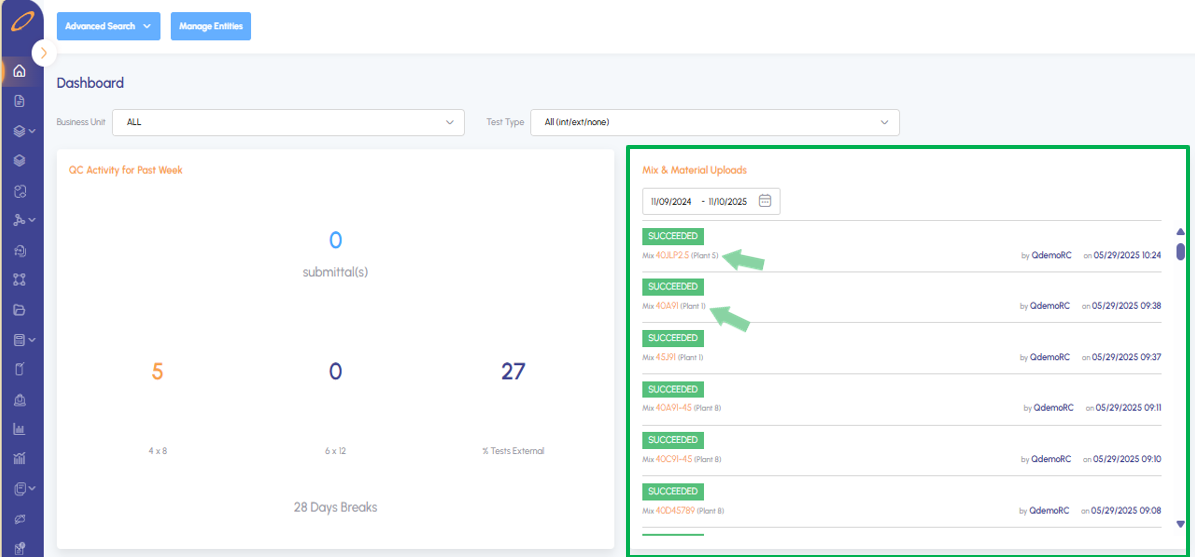
On the QC tab of the dashboard page, the mix and material tile will now show the plant the mix belongs in. - Advanced Search: Search Time Reduced
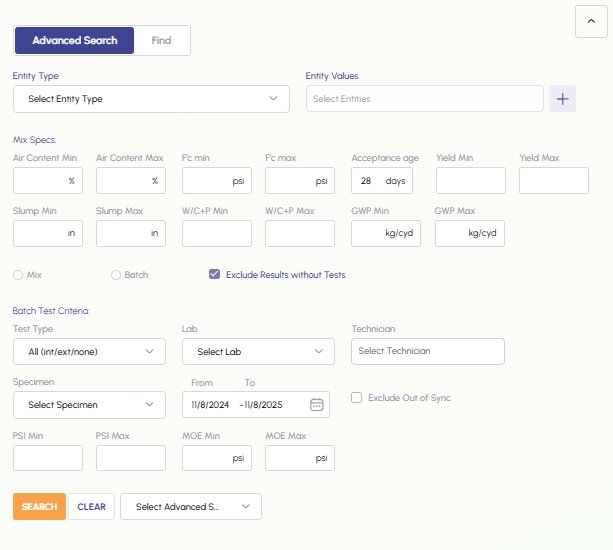
Users will notice reduced wait times for advanced searches related to mixes and batches. - Mix Design: Upload from Mix Grid and Distribution
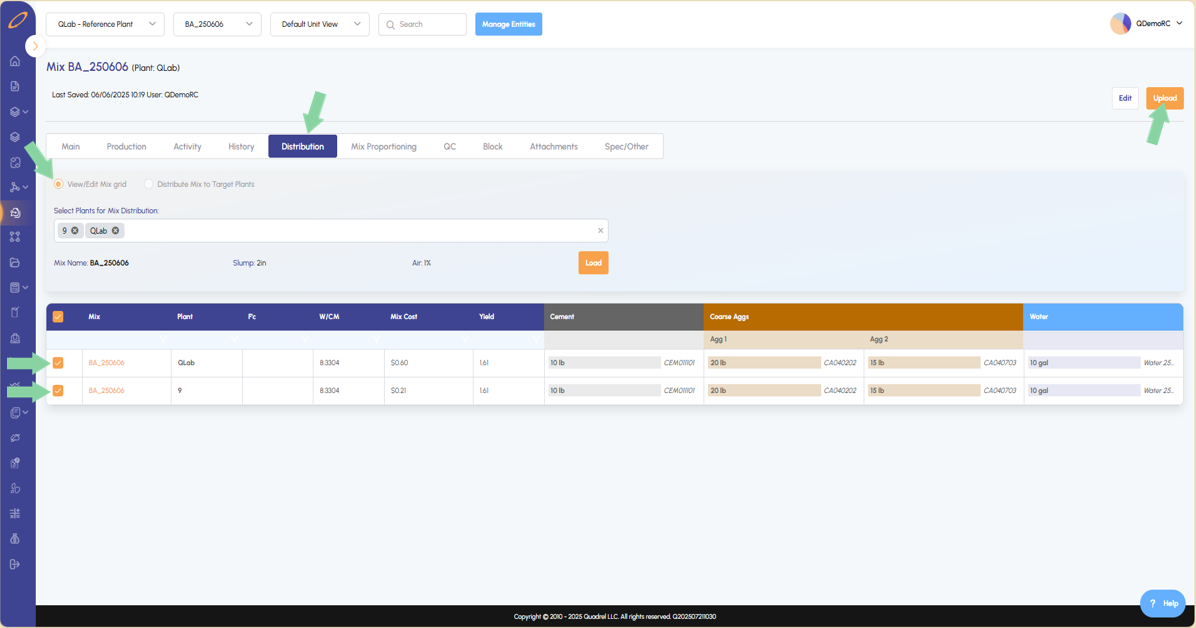
Users will now be able to upload multiple mixes at a time from the mix grid. Additionally, users can distribute mixes to new plants and have them upload at the same time. - Mix Design: Tickets and Tests Preview
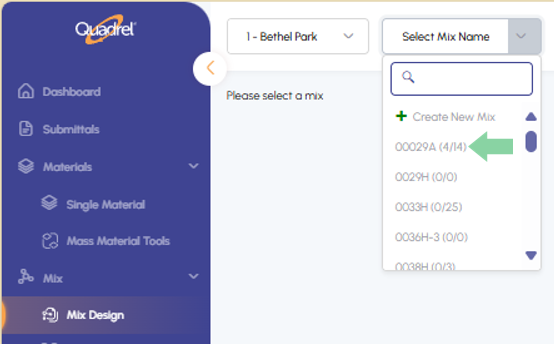
Users in the mix design page will see a preview of each mix in the selected plant and whether or not that mix has Tickets and/or Test Data. - Mix Design: Mix Spec and Mix Design
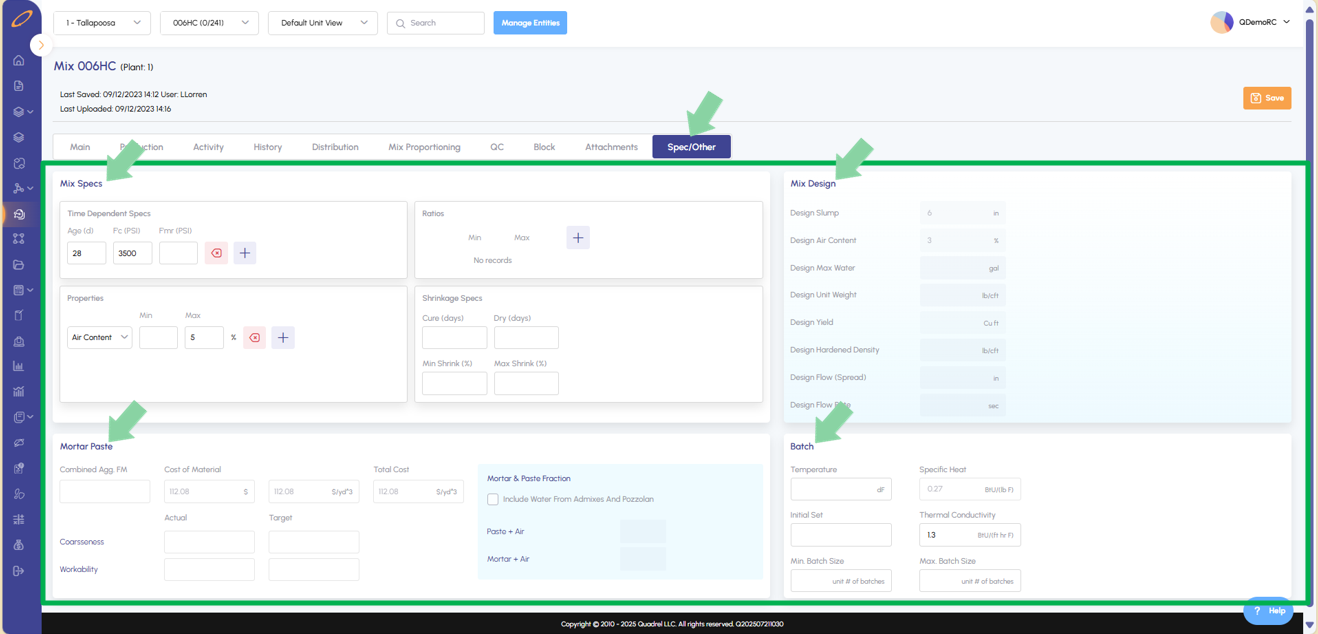
Users will find a new tab in mix design named Spec/Other. In this tab users will now see Mix Spec and Mix Design from Legacy Quadrel. - Ticket Test Data: Link to Test Machine
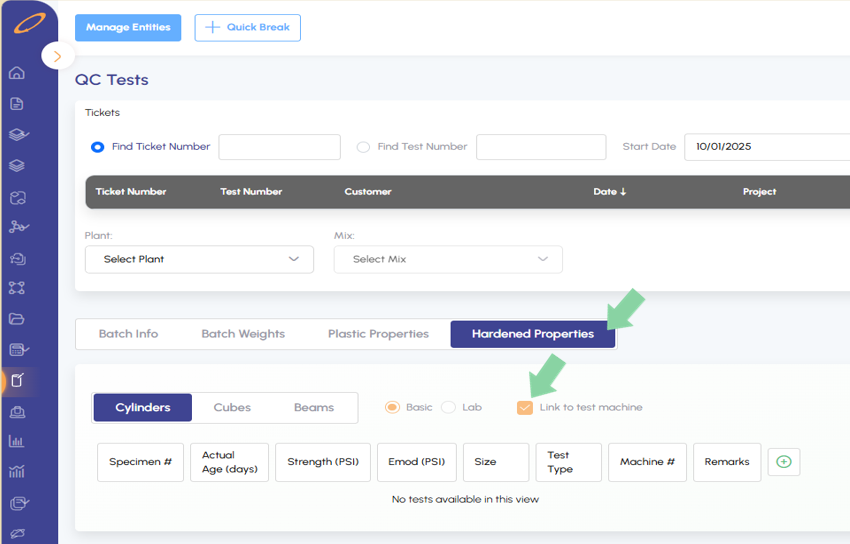
When creating batch tickets, users will notice the box "Link to Test Machine" will now be checked automatically. Please email us if you would like this option turned on. - Submittals: Technical Service Settings
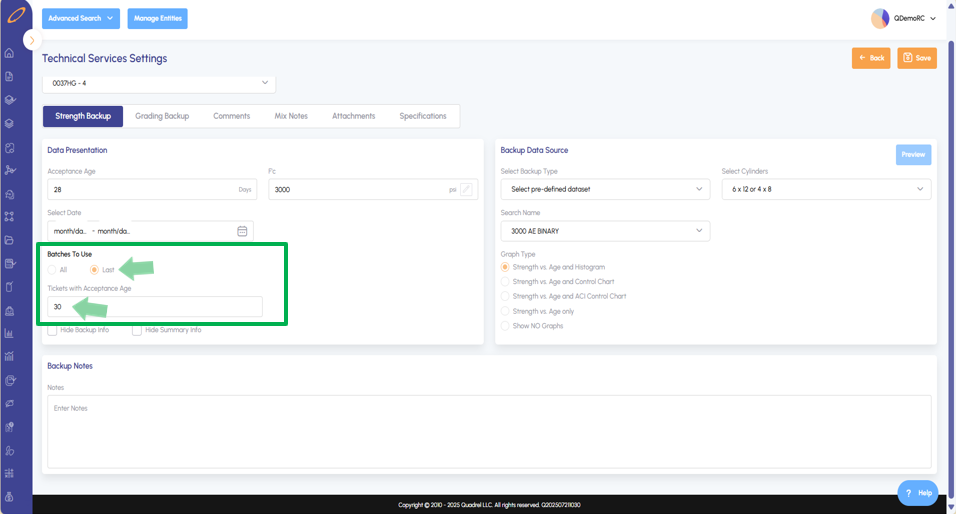
Users in submittals who are adding strength backup data will now be able to specify the number of Batches to use in the submittal report with the specified acceptance age. - Grid Improvements: Pop Out and Filter
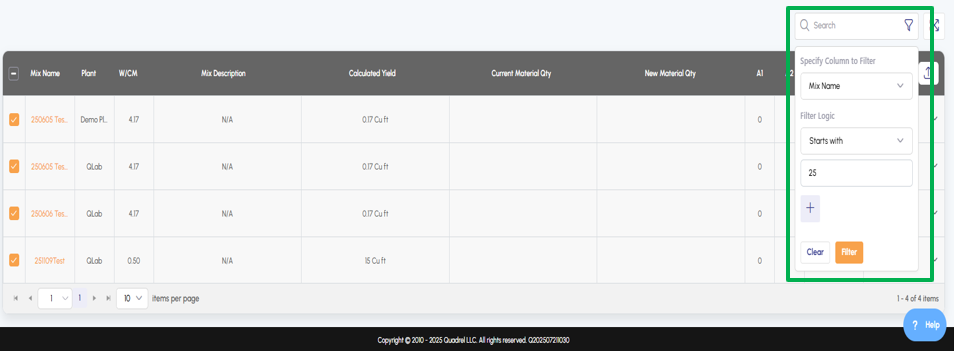
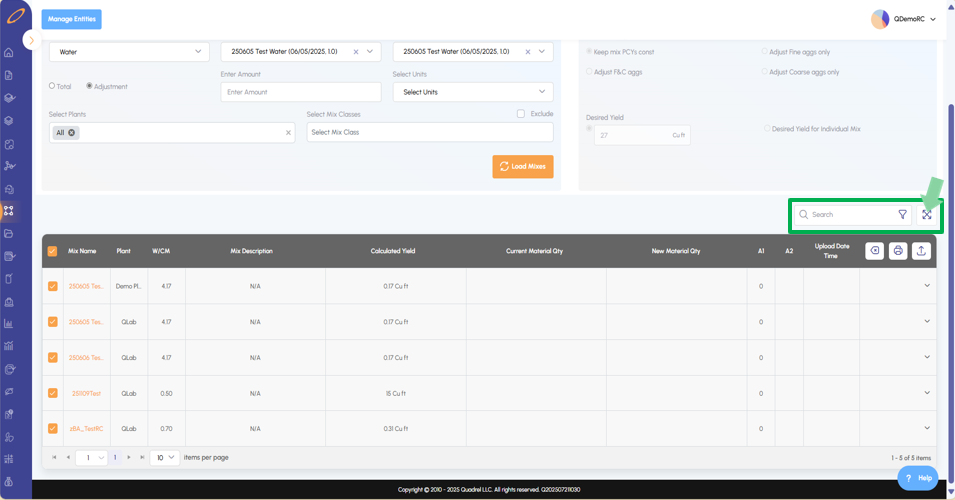
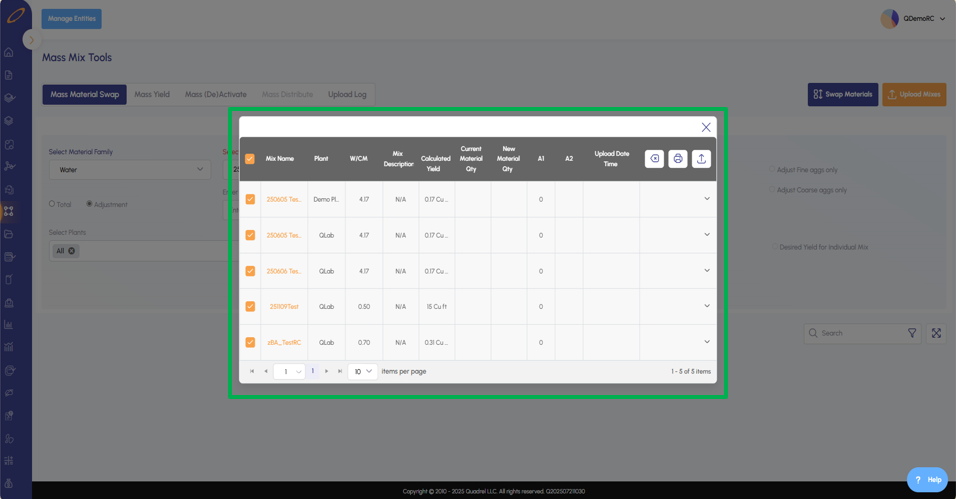
Grid locations will now have a "Pop-Out" feature to maximize the grid size. Additionally custom filtering logic can now be applied to grids.
mResolve: New Features and Improvements.
- New features have been added to mResolve in the web. Some existing features have been updated to become more user friendly and efficient.
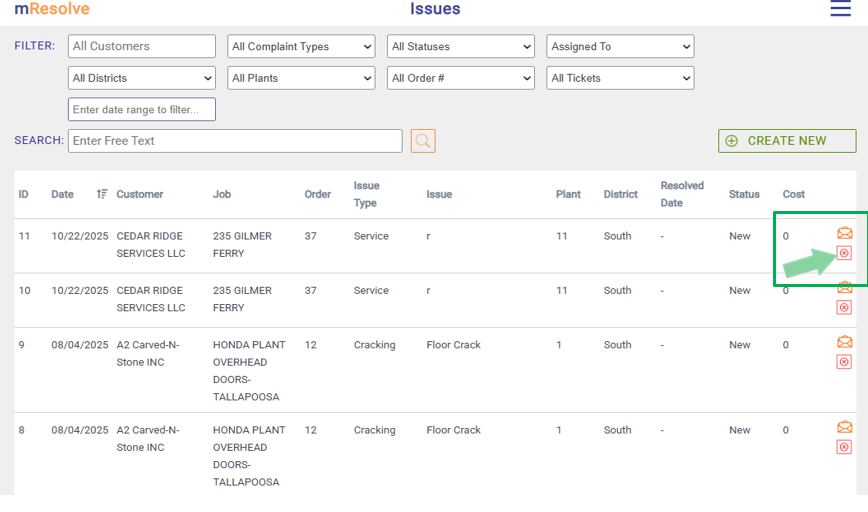
- mResolve users can now delete incidents as shown in the screenshot below.
2. When creating a new incident, users can just select order and not a ticket. Previously users had to select both order and ticket.

3. Previously attachments would only upload 1 at a time, now users can upload all selected attachments at once without issues.
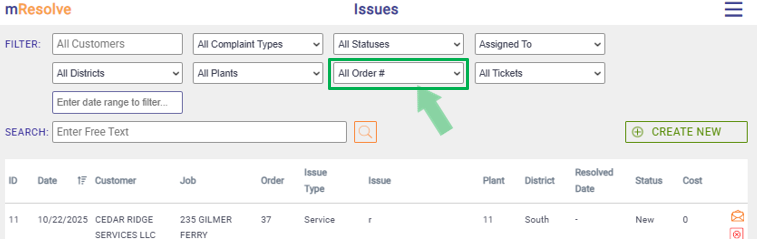
4. In the list of all mResolve incidents, users now have the ability to filter by order number.
Single Material: Best Fit and Least Cost.
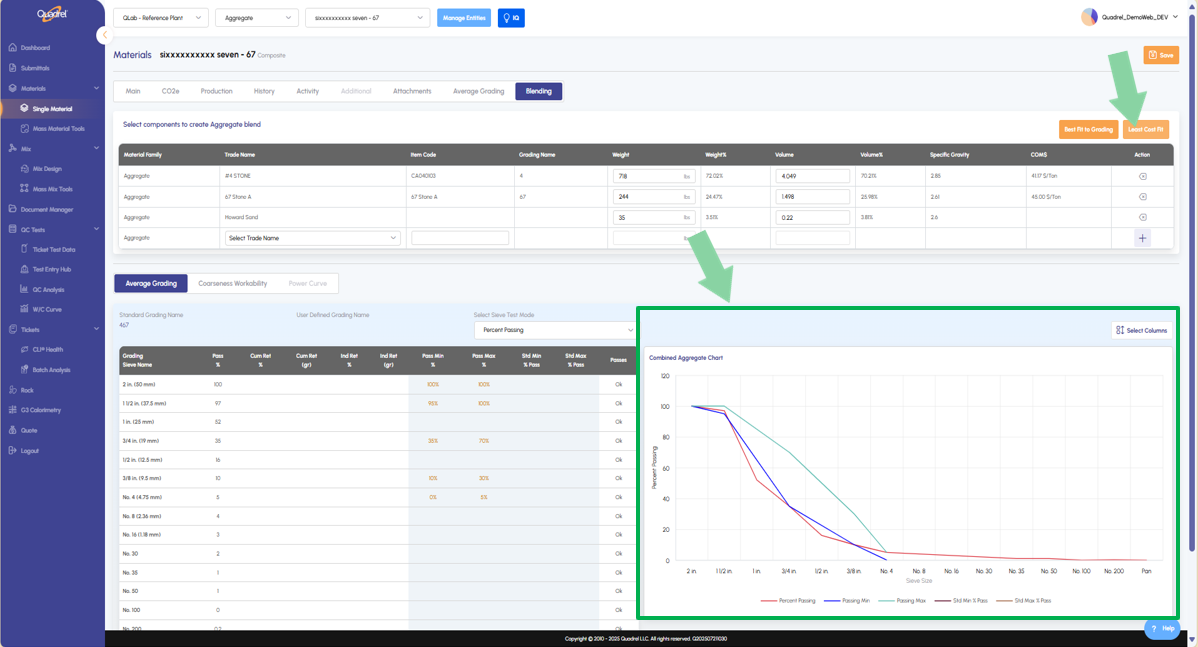
- In single material users will see a blend tab when applicable. Those who have created a material blend can now click the two buttons "Best Fit" & "Least Cost" to visualize a corresponding graph based on the user defined upper and lower limits.
- Click the button "Best Fit to Grading" and the combined aggregate chart will generate accordingly. Showing the best fit to the user defined grading upper and lower limits.
2. Click the button "Least Cost Fit" and the combined aggregate chart will generate accordingly. If the materials have cost entered, this chart below will show the cheapest way to fit the materials within the boundaries.
Single Material: Average Grading.
- Users can now input their average grading data for aggregate materials in web Quadrel. Be sure to click save after making changes to a materials average grading.
Single Material: Material Hub.
- In single material, production tab, users will see a new information tile. In this tile users will see their year-to-date Material Metrics.
- Number of batches with this material.
- Percentage of this material in tolerance.
- Cost of the material and wastage.
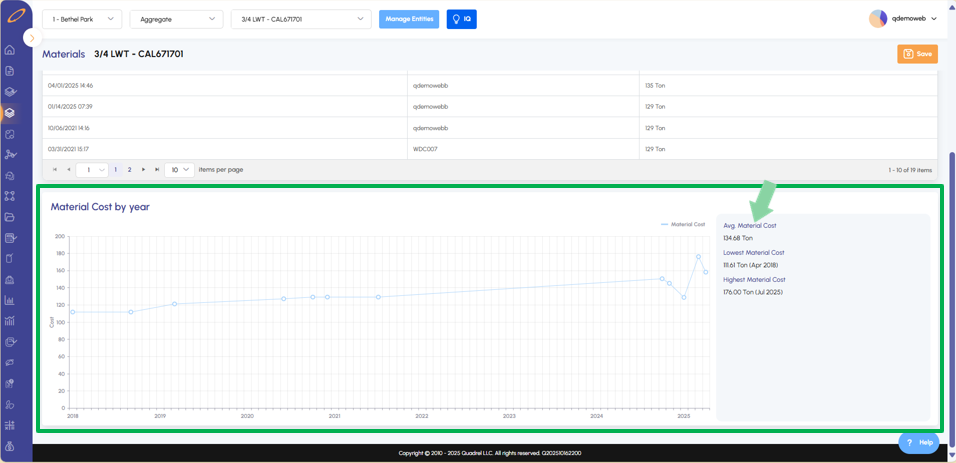
- In single material, switch to the history tab. Users can scroll down to see material cost by year charted.
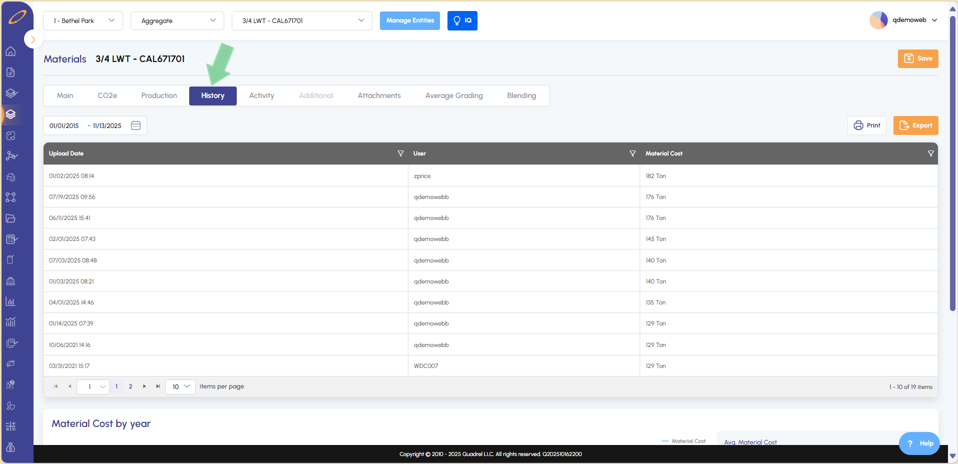
- The chart will provide a visualization of this materials cost per year. Additionally, users will be provided the following metrics.
- Average Material Cost
- Lowest Material Cost
- Highest Material Cost
- In single material, activity tab, users will be able to add comments to the material and export if desired.
.
Dashboard: Mix and Material Tile Shows the Plant.
- On the QC tab of the dashboard users will see the Mix and Material Uploads tile. Besides each mix name, Quadrel now informs the user of the plant the mix comes from.
Advanced Search: Search Time Reduced.
- Users will find the advanced search load times have been reduced when searching for results related to mixes and batches.
Mix Design: Upload from Mix Grid and Distribution.
- The first update is to upload from the mix grid. From the distribution tab, select the View/Edit Mix Grid radio button and then load desired mixes. Users can select mixes checkboxes to upload them all at once to corresponding plants with a few clicks.
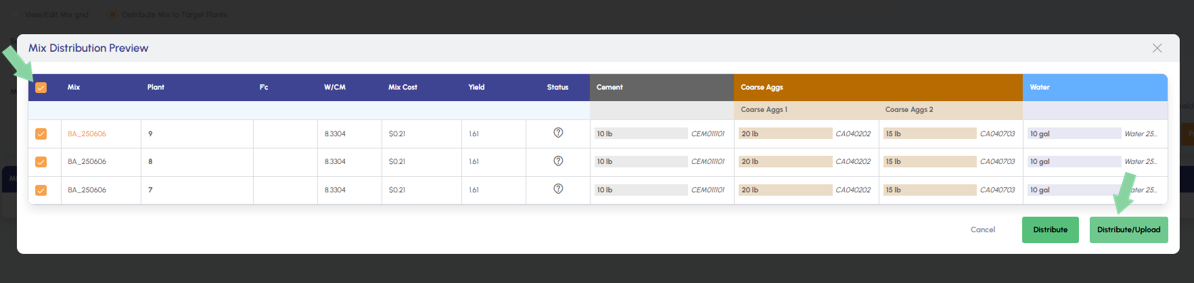
2. The next change is found using the radio button, "Distribute Mix to Target Plants". After making distribution selections, the Distribution preview form opens. Users will now notice the new option to Distribute & Upload as shown in the screenshot below. This will automatically upload mixes in the respective plants after distribution.
Mix Design: Tickets and Tests Preview.
- In mix design when selecting a mix from the dropdown menu, users will now see a preview of the Tickets/Test tied to that mix as shown in the example below.
Mix Design: Mix Spec and Mix Design.
- Web Quadrel users will see a new tab in mix design labeled "Spec/Other". In this tab users will find additional features related to mix design such as.
- Mix Specs, Mix Design, Mortar Paste, and Batch.
Ticket Test Data: Link to test Machine.
- In ticket test data, users will now see the checkbox option to "Link to test machine" is checked by default in a tickets hardened properties. This is a critical step in ensuring that Quadrel interacts with test machines successfully.
Submittals: Technical Service Settings.
- Users in submittals who are adding strength backup data will now be able to specify the number of Batches to use in the submittal report with the specified acceptance age. In the example below, the submittal will pull in strength backup data from the last 30 batch tickets with acceptance age of 28 days.
Grid Improvements: Pop Out and Filter.
- Users will find grids in web Quadrel have new features available for use.
- Grid Pop-Out
- Click the icon in the screenshot below to pop out the grid, maximizing the display on your page.
- Grid Pop-Out
2. Grid Filter/Search
- Users can use the search box to apply custom filtering logic to the grid results as shown in the screenshot below. As example, the filter shown below is only showing mixes in the grid that have a mix name starting with "25".