Batch Analysis: Additional Charts For users with truck water integration, users are now able to chart and analyze the Total W/CM of the ticket vs. the mix using control charts and scatterplots.
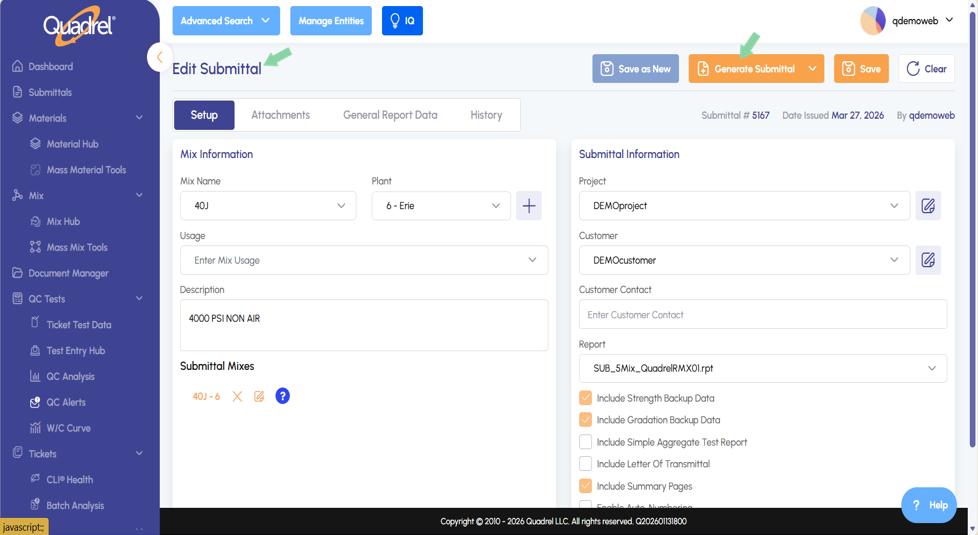
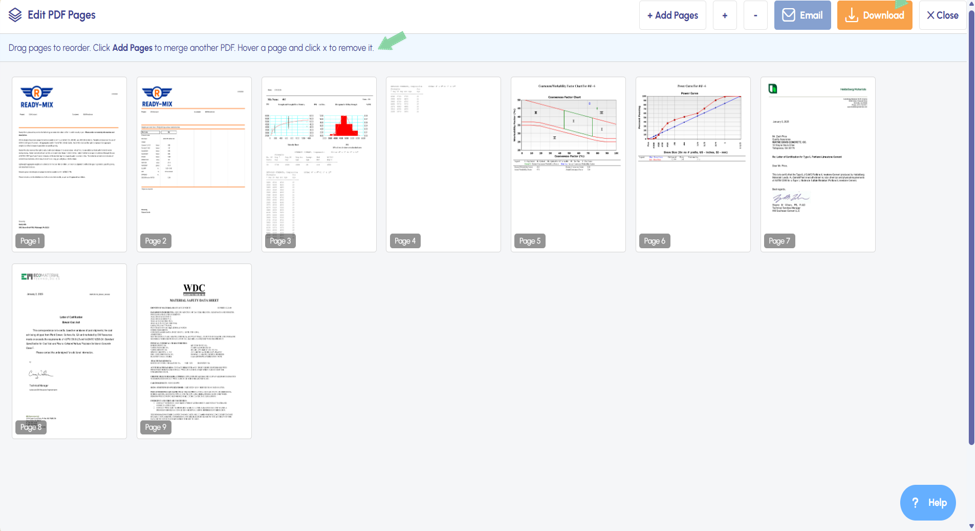
Submittals: Reorder Pages After a user clicks generate submittal, the edit PDF pages form opens. This is a new feature that allows users to reorder pages in submittals. Additionally, pages can be added or deleted from this screen before downloading or emailing the submittal.
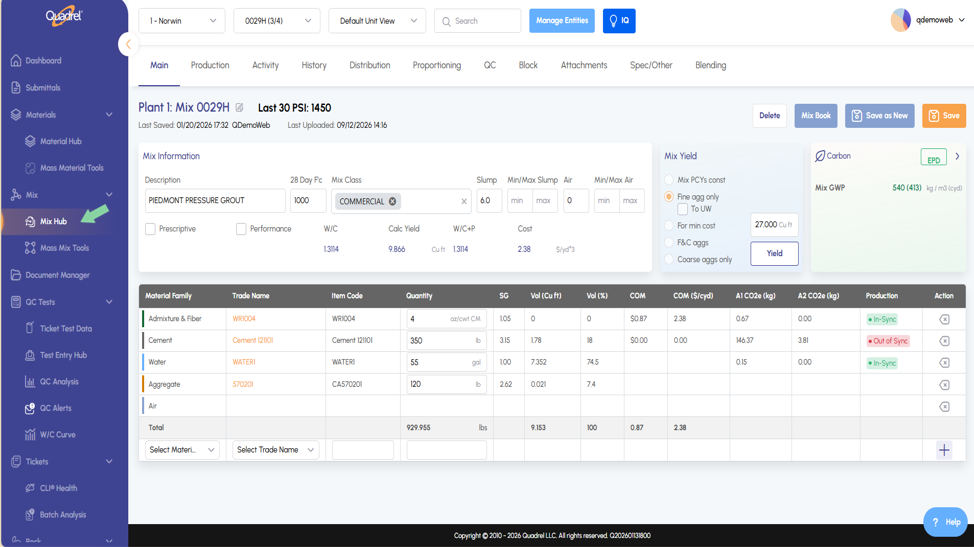
Mix Hub: UI Improvements The Mix Hub has been adjusted to make mix design more user friendly. Only see what matters most while creating mix recipes and less scroll less while navigating the page.
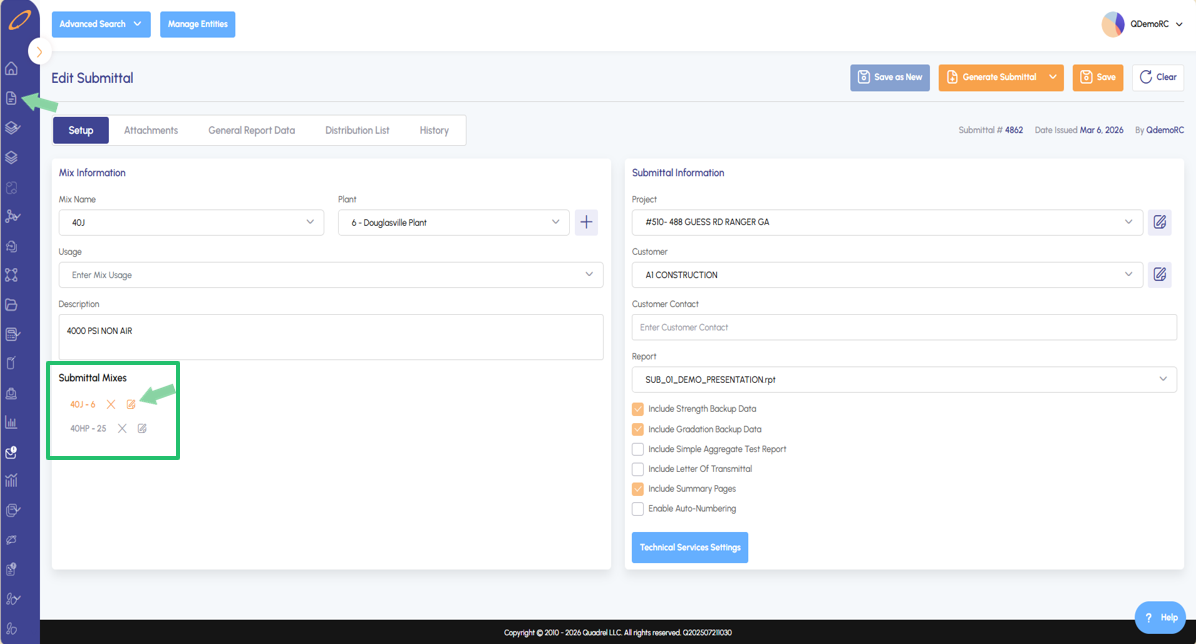
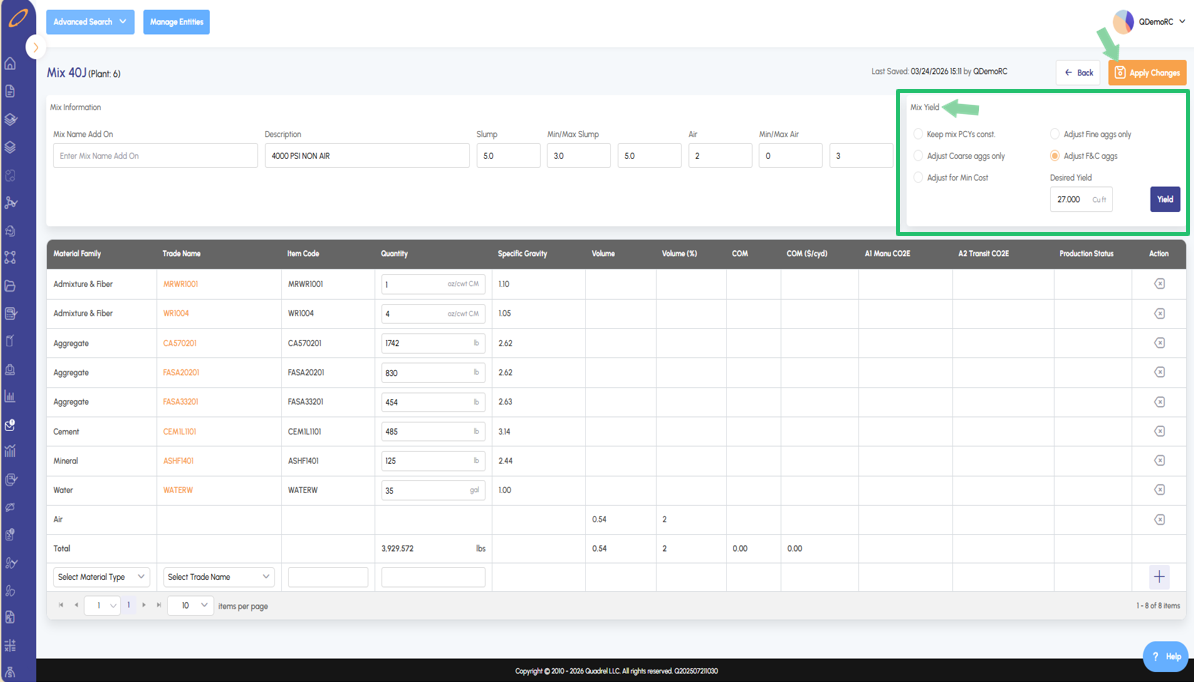
Edit Mix in Submittal: Yield Box.
When editing a mix within a submittal, mix yield functionality is now available for use in the same edit mix form. In the example below the desired submittal is selected and in edit mode. When a submittal mix is clicked, it will become highlighted. Click the edit icon shown in the screenshot below to open the edit mix for submittal form.
After opening the mix within submittals, notice this page now features a mix yielding container to optimize mixes for submittals as needed. After making changes to the mix yield, be sure to click apply changes!
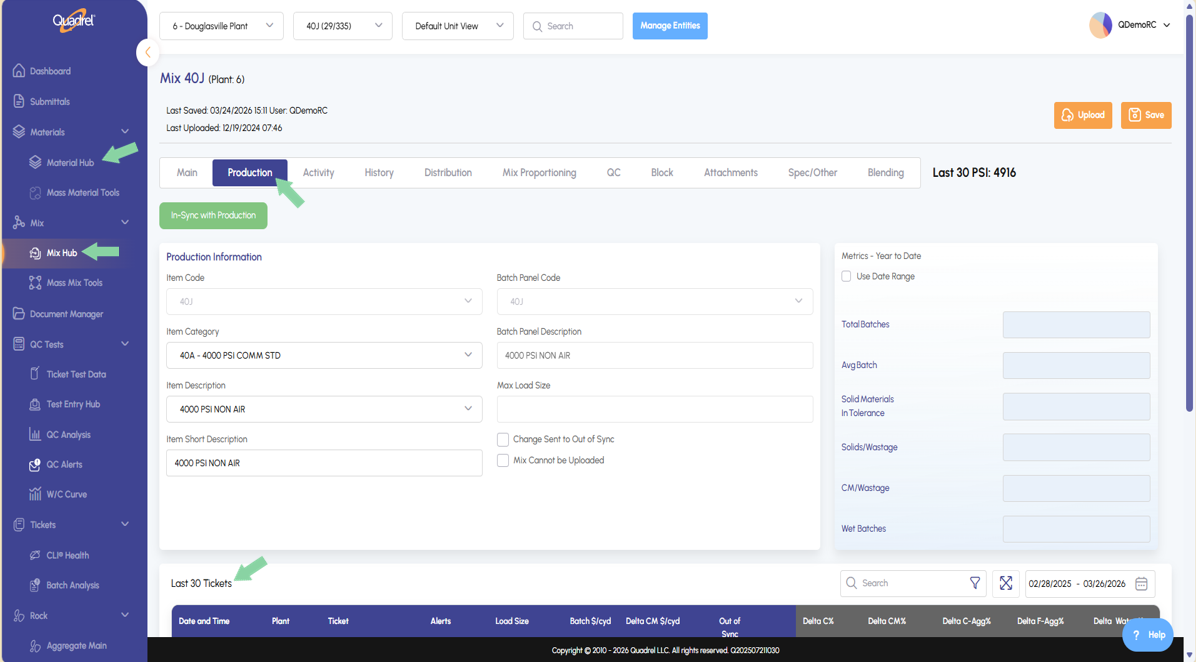
Production Tab: Selected Plant.
In the Material and Mix Hub, the production tab last 30 tickets will only show tickets from the current selected plant.
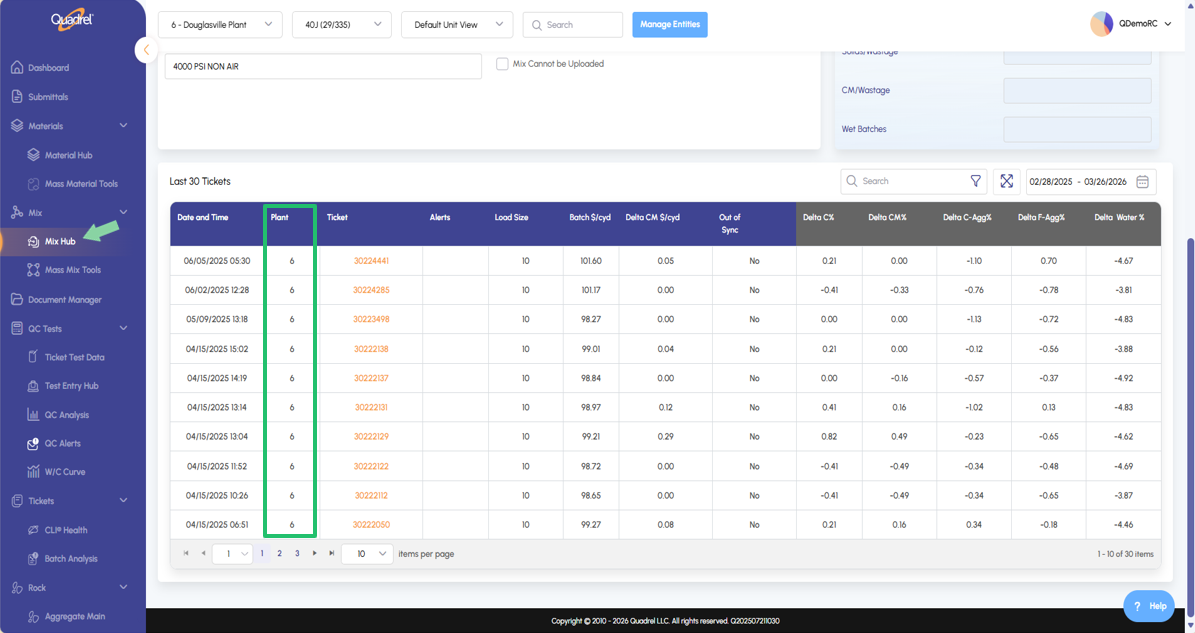
On the production tab in either Material or Mix hub, scroll down until you see the last 30 tickets table as shown in the bottom of the Mix Hub screenshot below.
In the example below, notice that mix 40J in plant 6 is selected. Only tickets from plant 6 are now pulled into the last 30 tickets table.
Delete Buttons.
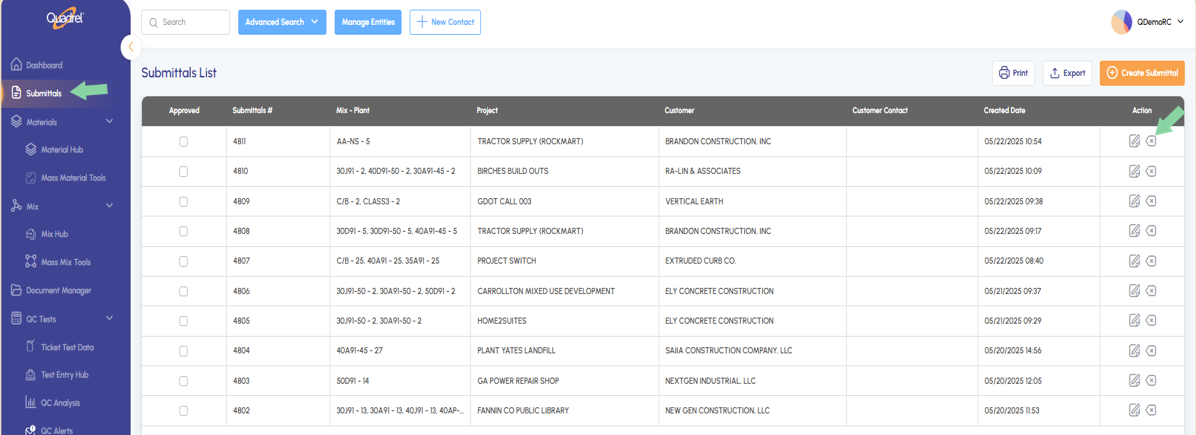
Users can now delete submittals, materials, mixes, and tickets within web Quadrel.
Submittals: Navigate to the submittals page action column, notice the new delete button icon.
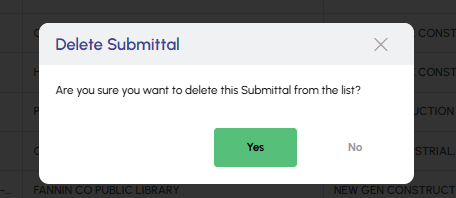
When attempting to delete a submittal, Quadrel will ask you to confirm your decision.
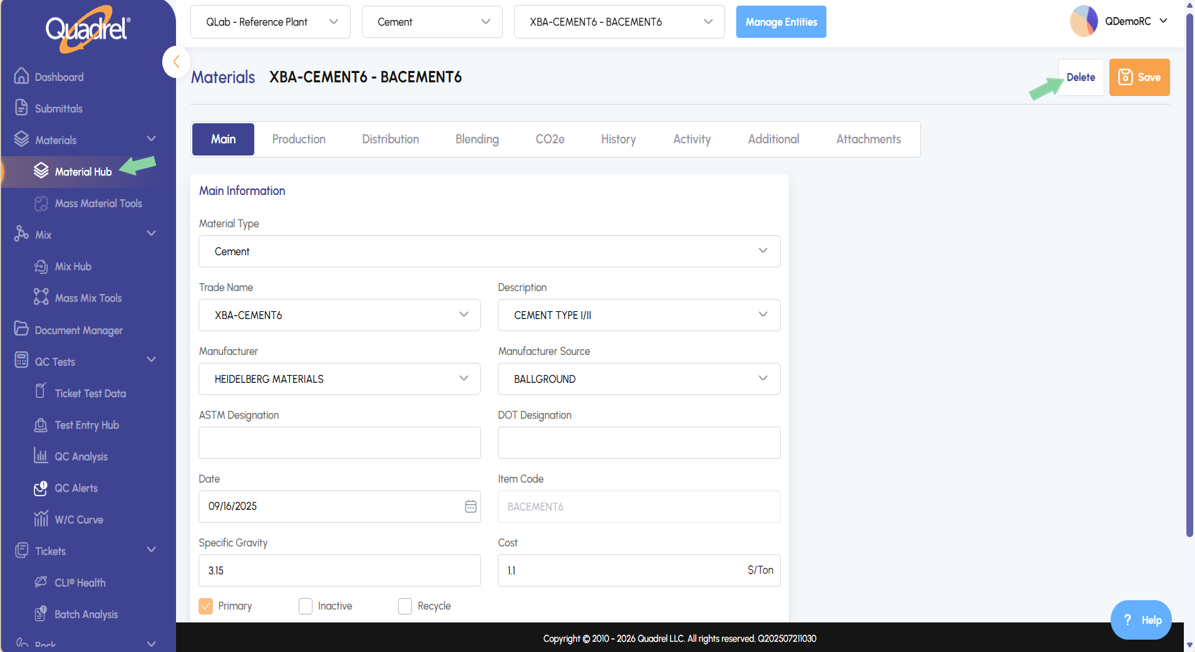
Materials: Navigate to the Material Hub, after selecting a specific material, notice the delete button next to the save button.
After clicking delete, Quadrel will ask you to confirm the material deletion.
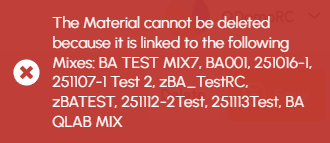
NOTE: If a material is used in mixes, Quadrel will prevent you from deleting the material.
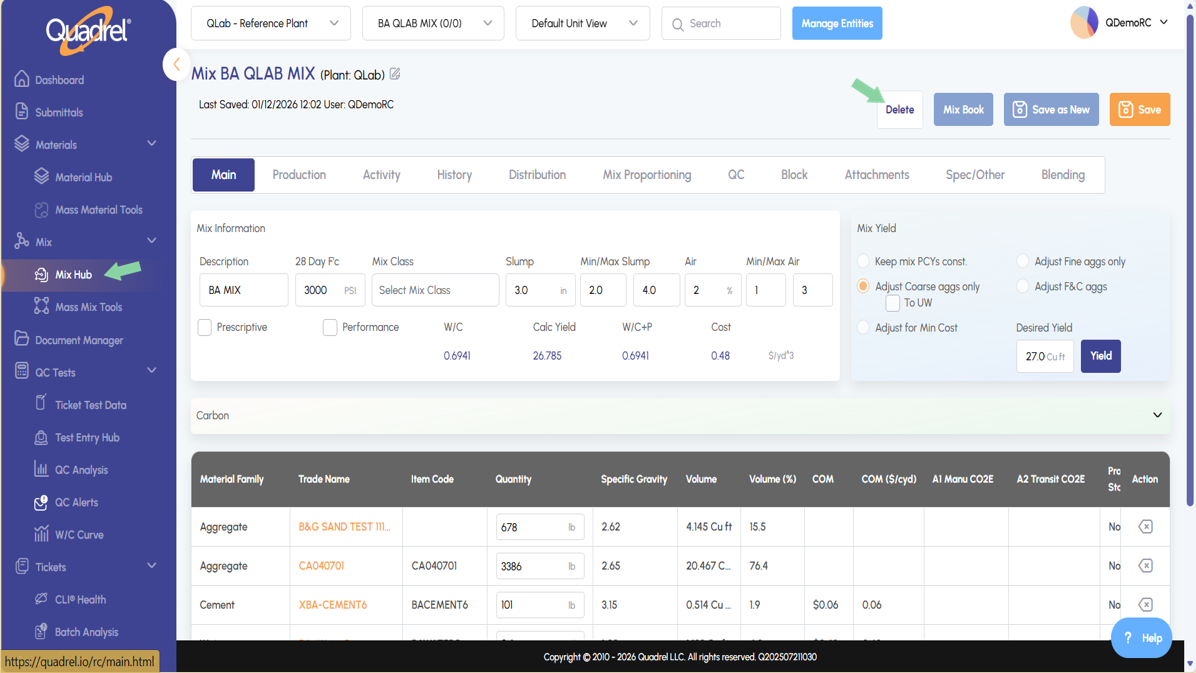
Mixes: Navigate to the Mix Hub, after selecting a specific material, notice the delete button next to the save button.
After clicking delete, Quadrel will ask you to confirm the mix deletion.
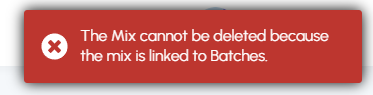
NOTE: If a mix is linked to batch tickets, Quadrel will prevent you from deleting the mix.
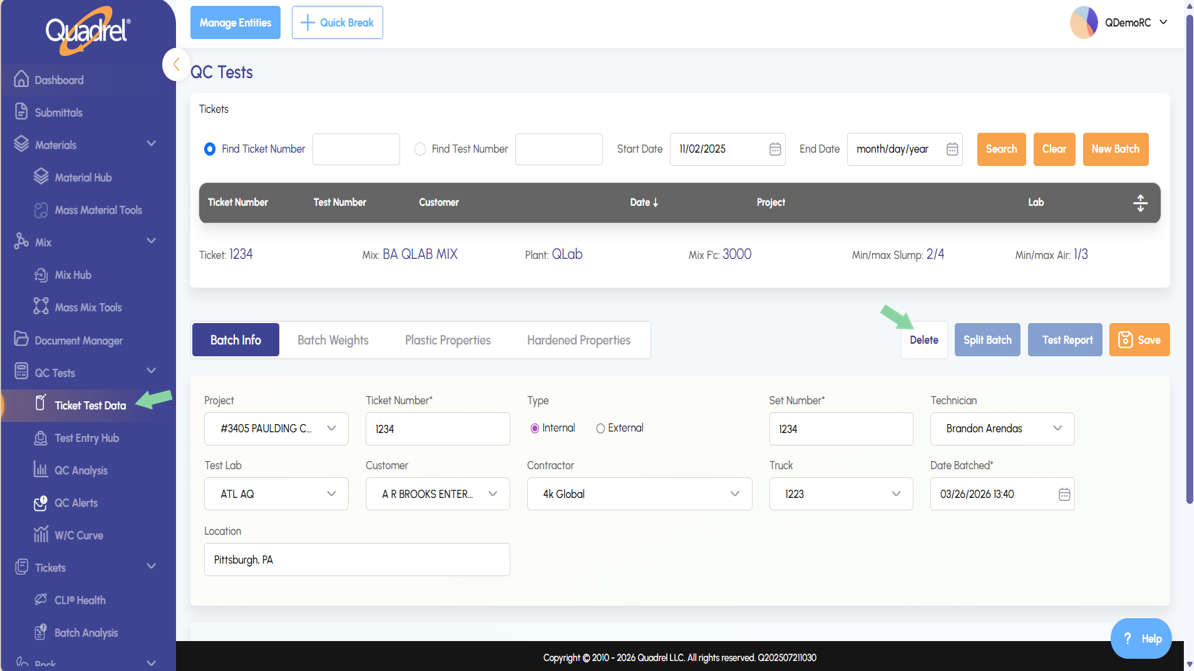
Tickets: Navigate to the ticket test data, after selecting a specific material, notice the delete button next to the save button.
After clicking delete, Quadrel will ask you to confirm the ticket deletion.
Ticket Test Data: Last Mix Upload.
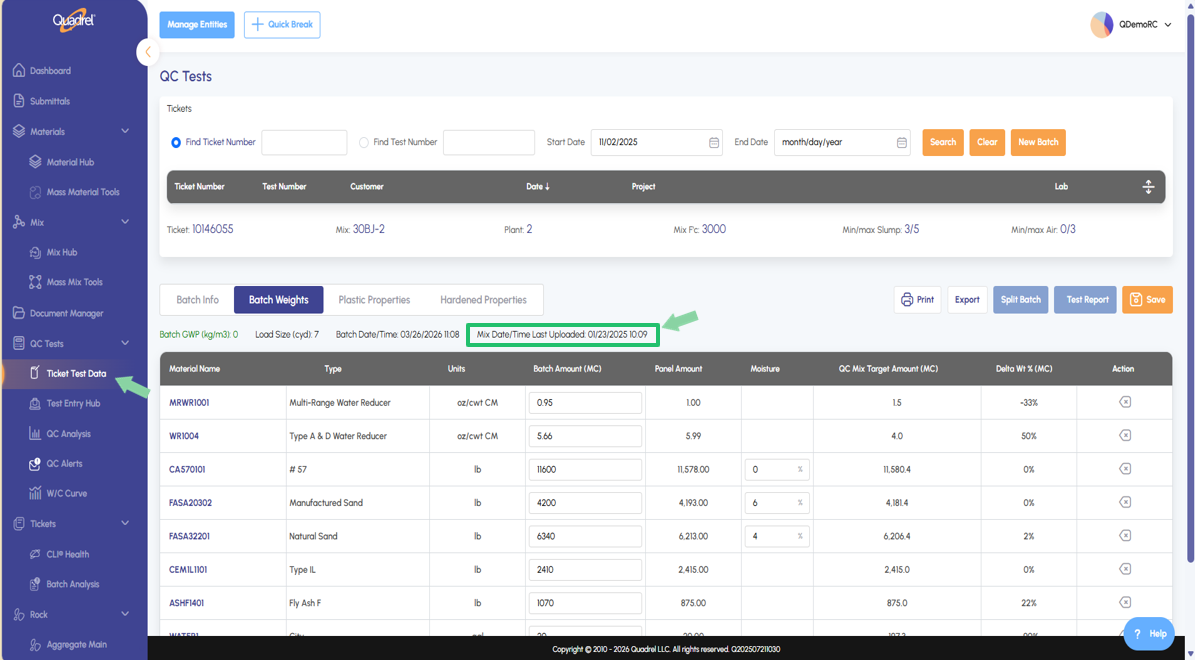
When viewing a ticket in ticket test data, switch to the Batch Weights tab to see the last date and time this mix was uploaded.
User Options: Phase One.
Users can now access user options phase one directly in web Quadrel.
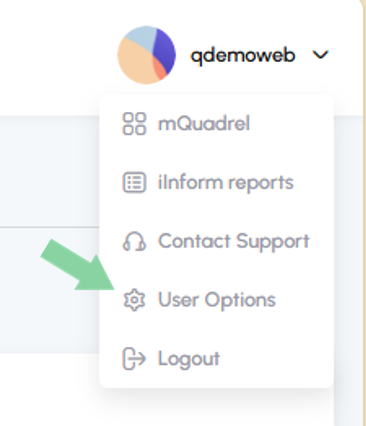
Once logged in, click on your user profile at the top right of web Quadrel. From the dropdown options, select User Options as shown in the screenshot below.
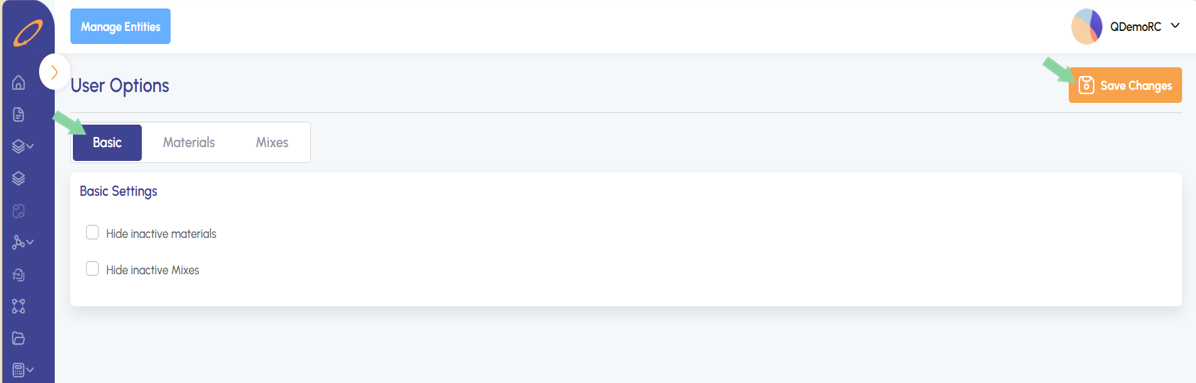
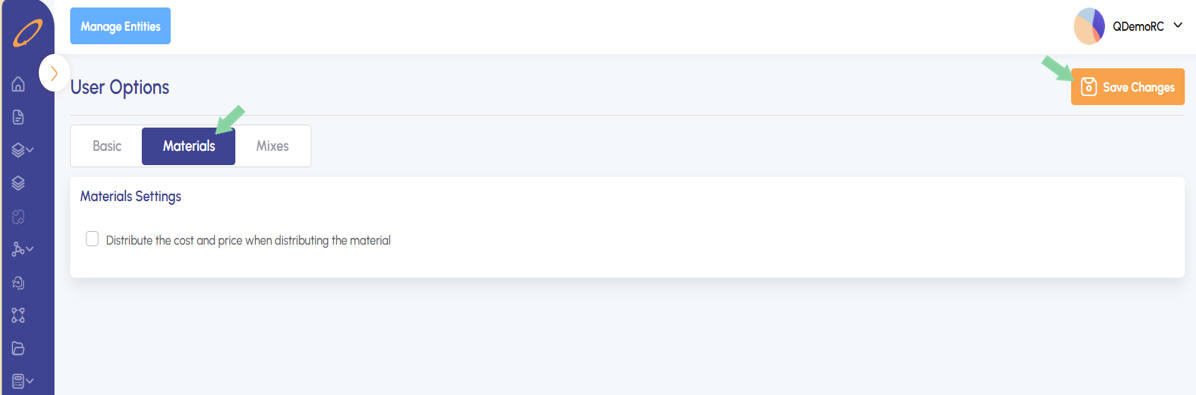
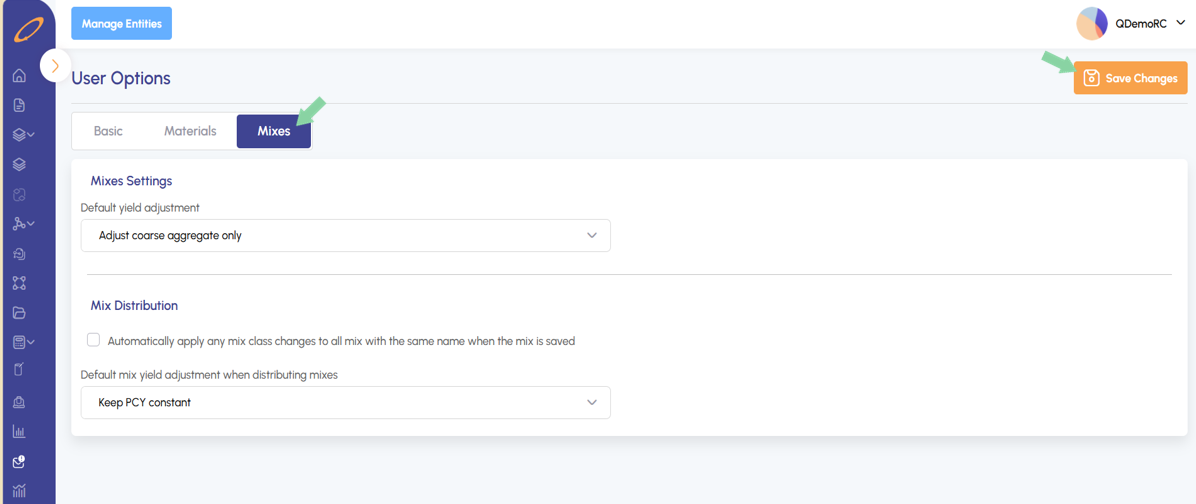
The user options page will open. In phase one, three categorized tabs of options will be present to review and adjust as needed. By default, the basic tab will load. Also currently available are tabs for Materials and Mixes. Be sure to click save after making any changes.
Basic Tab: Allows users to checkbox if they would like to hide inactive mixes, materials, or both.
Materials Tab: Allows users to checkbox if they would like to distribute the cost and price when distributing the material.
Mixes Tab: Allows users to select a default yield adjustment setting during yielding and while distributing mixes. The checkbox when selected will automatically apply any mix class changes to all mixes with the same name when the mix is saved.
Batch Analysis: Additional Charts.
Users will notice additional W/CM charts have been added in Batch Analysis chart selections.
New Chart Types:
W/C CUSUM
W/CM CUSUM
Delta W/C
Delta W/CM
W/C Scatterplot
W/CM Scatterplot
Submittals: Reorder Pages.
After a user clicks generate submittal, the edit PDF pages form opens.
This is a new feature that allows users to drag and drop to reorder pages in submittals. Additionally, pages can be added or deleted from this screen before downloading or emailing the submittal.
Mix Hub: UI Improvements.
Users will notice additional W/CM charts have been added in Batch Analysis chart selections.