06/20/2026 Patch: Advanced Search, Ticket Test Data, Etc.
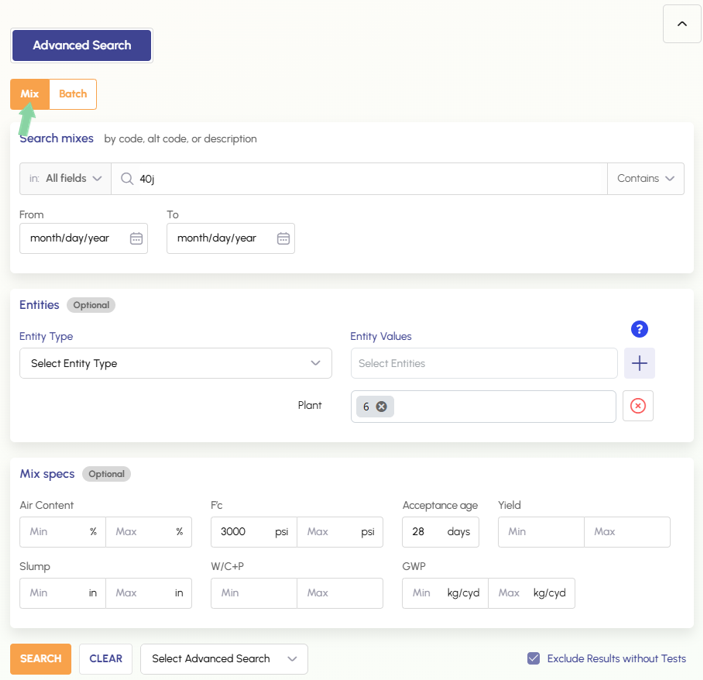
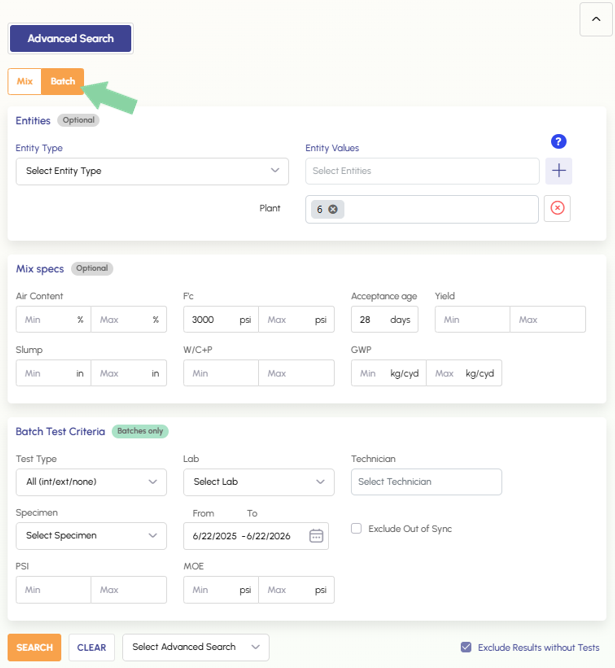
Advanced Search: Mixes and Batches The Advanced search UI has been reorganized to clearly separate mix vs. batch searches. The user first clicks mix, or batch button and the can fill in the relevant search forms.
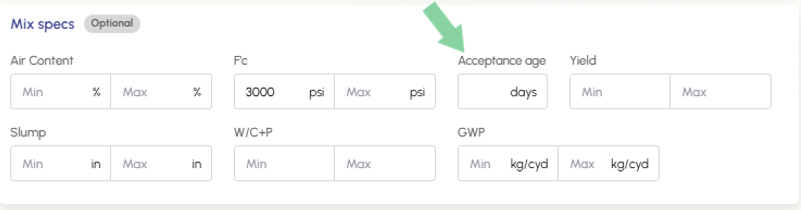
Advanced Search: No Acceptance Age Advanced search no longer locks you into an acceptance age of 28 days. You can now clear this value entirely or change it to whatever you need.
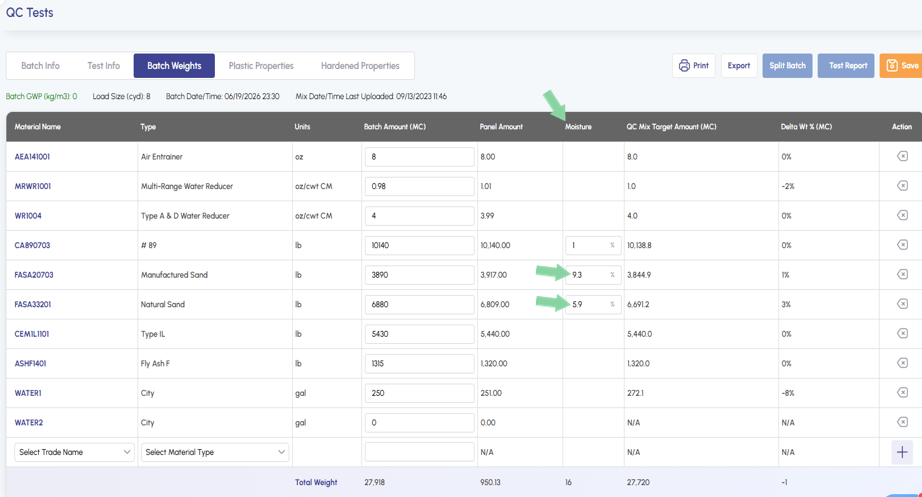
Ticket Test Data Batch Tickets: Allow Decimals On the Ticket Test Data Batch Weights tab, you can now enter decimal values in the Moisture column. Previously these values were rounded.
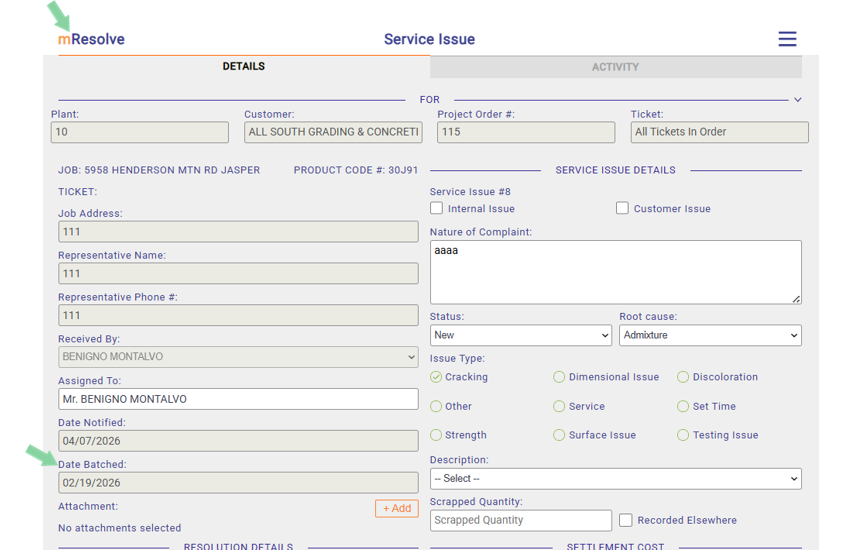
mResolve: Date Batched When reviewing an mResolve incident, the Date Batched now appears as a read-only field.
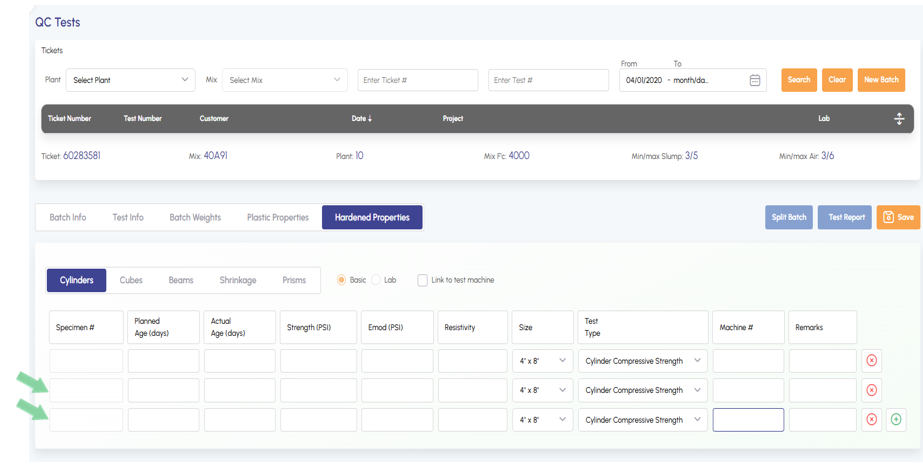
Hardened Properties New Row: Down Arrow When entering test data in Hardened Properties, you can now press the down arrow key to create a new row. The green plus icon still works for anyone who prefers it.
Advanced Search: Mixes and Batches.
Users will now see advanced search is redesigned to separate mix and batch searches. To search mixes, enter search criteria on the mix tab. For those who want to search batches, switch the advanced search tool to batch.
Searching Mixes
Searching Batches
Advanced Search: No Acceptance Age.
Bug fixes were implemented in advance search in occurrences where search criteria did not match returned results.
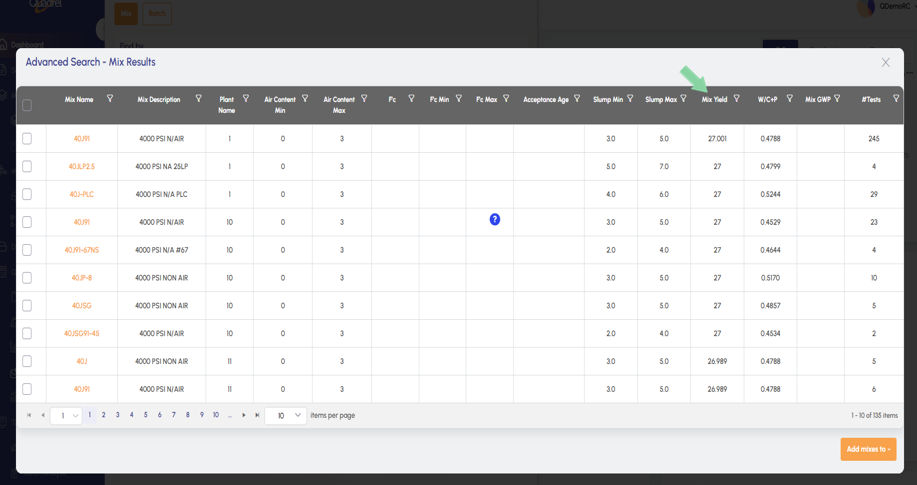
Advanced Search Mixes: Display Mix Yield.
When using advanced search centralize mix results in a table, users will now see the mixes yield is displayed as a table column.
Ticket Test Data Batch Tickets: Allow Decimals.
In the Ticket Test Data Batch Weights tab, users can now enter decimal values as needed in the moisture column. Previously moisture values were being rounded.
mResolve: Date Batched.
When reviewing an mResolve incident, the date batched is now shown to the user as a read only field.
Hardened Properties New Row: Down Arrow.
When entering test data in Hardened Properties, users can now click the down arrow on their keyboard to create a new row after initially clicking a cell in the first row. Those who prefer the green plus icon can still utilize this button to add a new row.