09/17/2025 Release: Advanced Search, iRock, TestIn, etc.
- Advanced Search
New search fields for min and max calculated yield. Additionally, a new tab was added to advanced search named find. Users can search from this form to quickly locate mixes. - Material Form: iRock
Several iRock features were added to the material form in web Quadrel. Users will now see Average Grading, Coarseness Workability, Blend Tab for Aggregate, and Blend Tab Cementitious Materials. - iRock
Added in new features such as User Defined Grading, Test Entry, and Default Sieve Stack. - QC Analysis
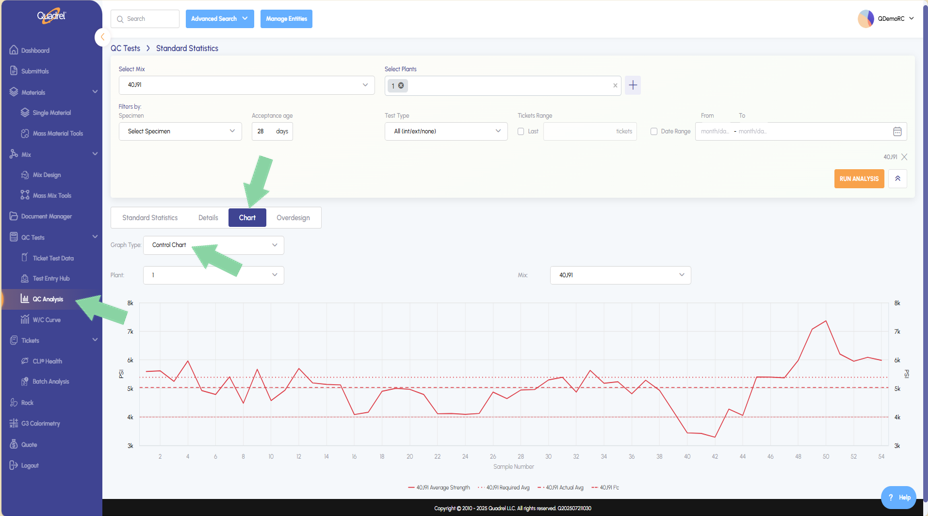
In QC Analysis control chart is now available under graph type. Additionally, users can now set default summary columns as well as default details columns. These columns were from legacy Quadrel, and now can be used in web Quadrel. - Single Material: Recycled Material
In single material, a checkbox is now given to mark a material as recycled if applicable. - Mix Design
Users can now assign a mix as prescriptive, performance, both, or neither with checkboxes. - Quote
New feature allows quotes to be made for multiple customers with different prices. - TestIn
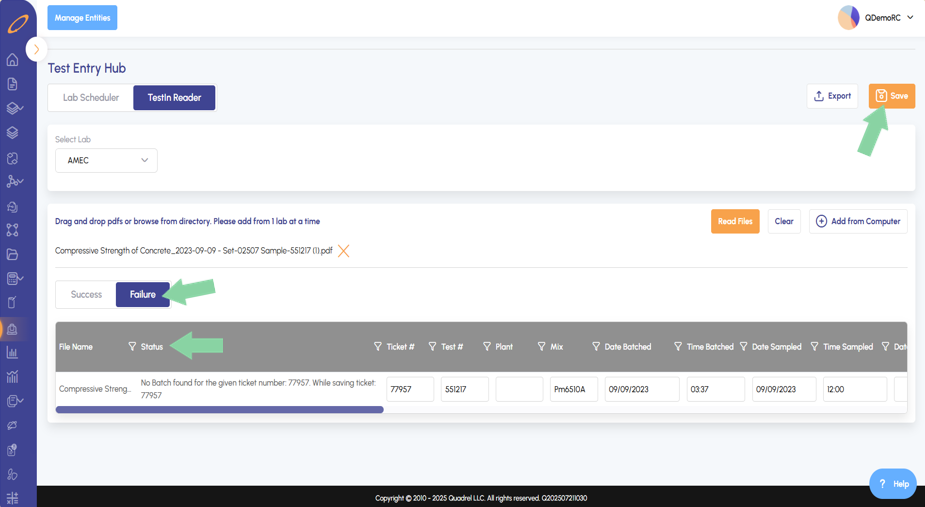
Several improvements made to the TestIn reader user interface and new error tab for easy troubleshooting.
Advanced Search.
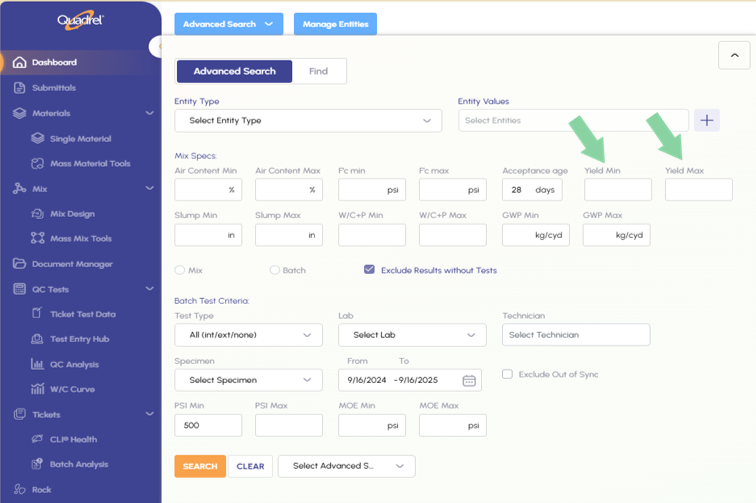
Users can now use the Yield Min & Yield Max search fields when using the advanced search tool. Yield is pulled from the mix designs calculated yield.
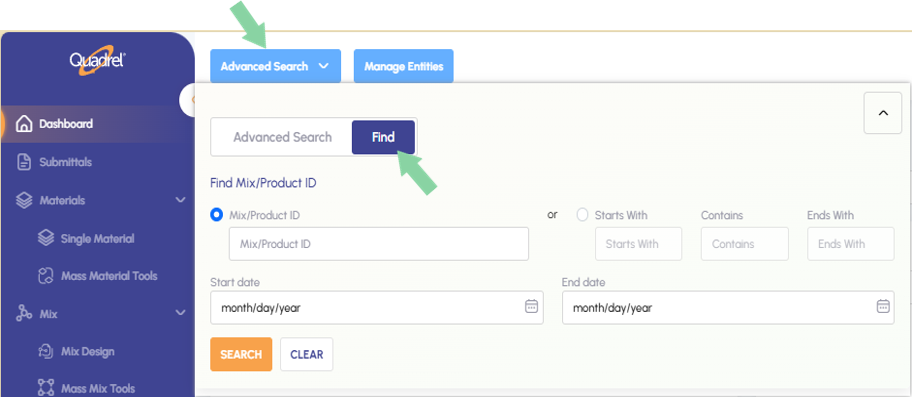
Additionally, when opening advanced search users will see a new tab named "Find". On the find tab, users can find mixes by searching. Search fields are broken down to allow for less direct searching.
Material Form: iRock.
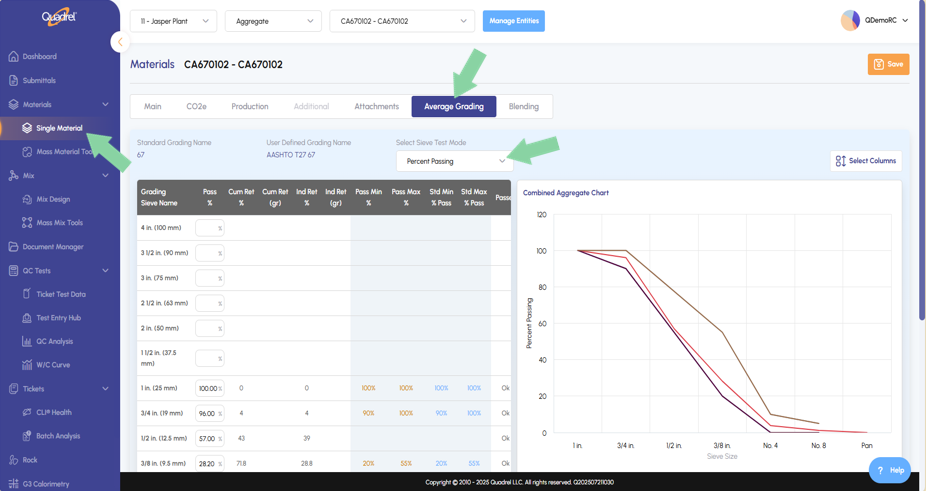
In single materials several iRock features were added into web Quadrel. Users will now see, Average Grading, Coarseness Workability, Blend Tab Aggregate, Blend Tab Cementitious Materials.
Average Grading, user can enter the average in any of these sieve test modes.
- Percent Passing
- Cumulative Retained
- Cumulative Weight Retained
- Percent Individual Retained
- Weight Individual Retained
The average gradation for the aggregate should be entered here, there is also a graph to the right.
- Coarseness Workability is found in the blending tab on the single materials page. Scroll down and switch tabs to Coarseness Workability.
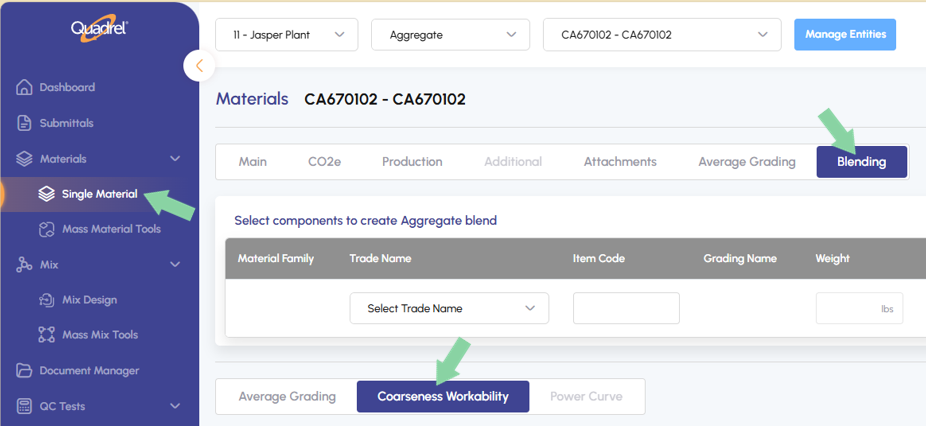
The Coarseness Factor chart helps concrete producers balance the amount of stone and sand in a mix. By evaluating how rough or smooth the mix feels and how easily it flows, they can better predict its performance — including whether it might segregate, and how easy it will be to pour and finish.
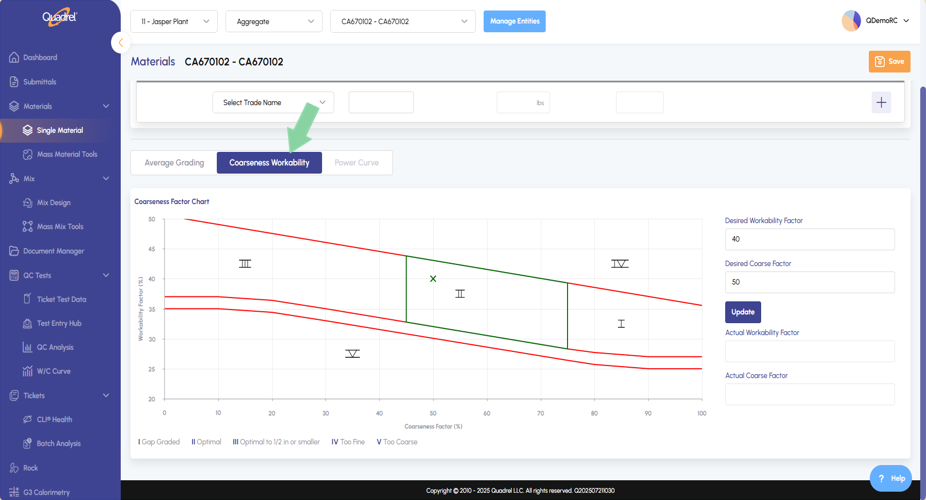
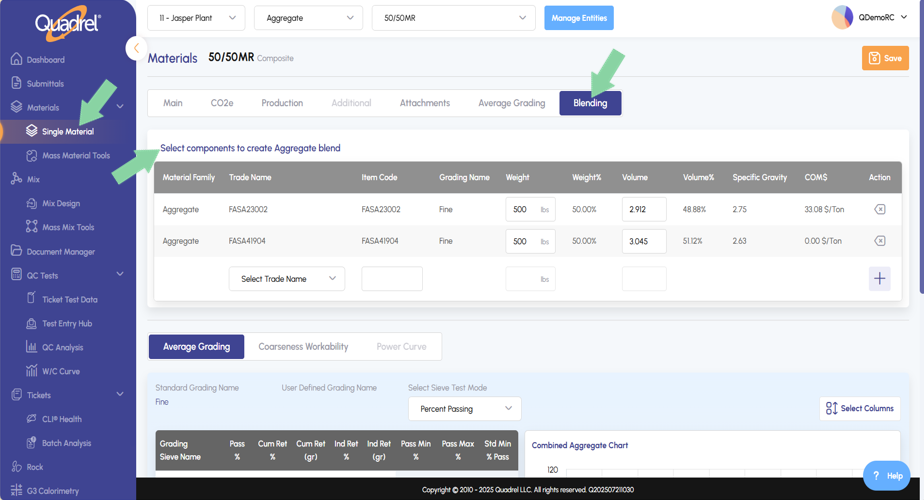
- Blend Tab Aggregate allows users to combine different aggregate materials to create a composite, or "blend." The sieve grading displayed below represents the combined grading of all selected components and is view-only. While you cannot directly edit a blend or composite, you can edit the average grading of each individual component. Inputs can be entered by either weight or volume.
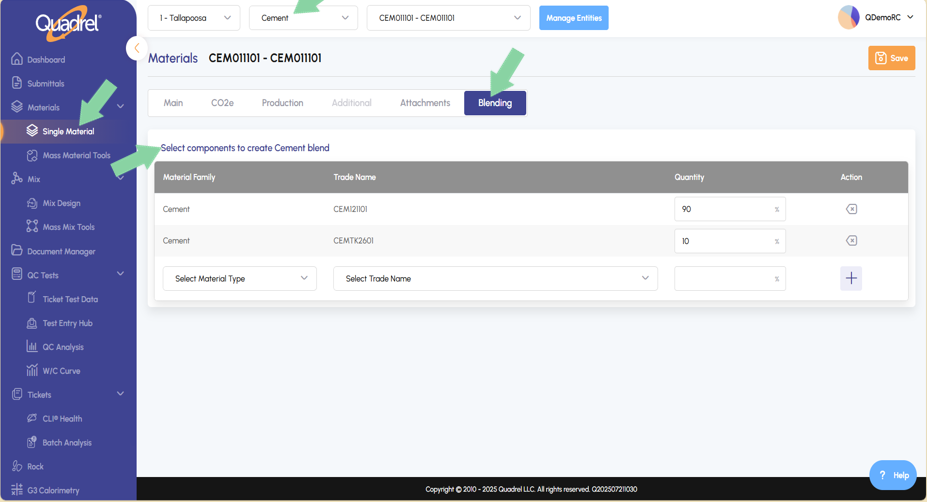
- Blend Tab Cementitious Materials allows users to select cement and mineral components to create blends. Utilize the plus icon at the end of the row in the table to add additional components.
iRock.
- Additional iRock features were added to web Quadrel.
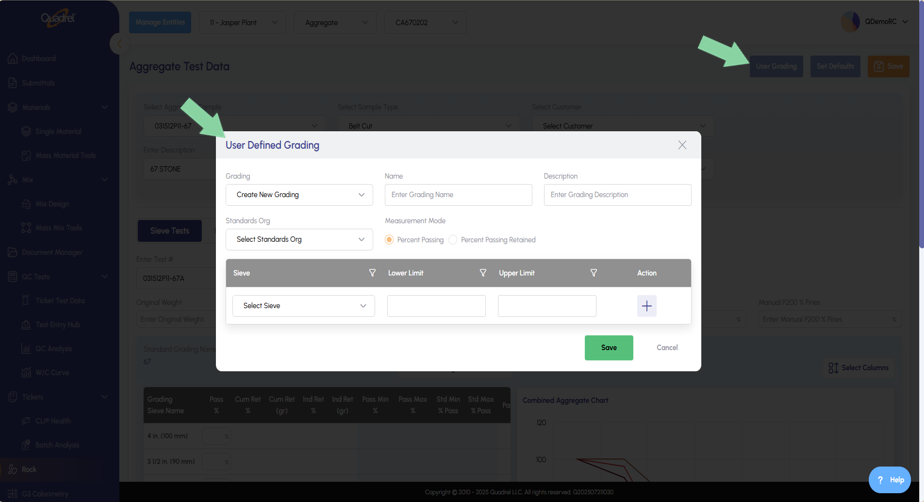
- User Defined Grading, the user can make a new upper and lower limit in percent passing or percent passing retained.
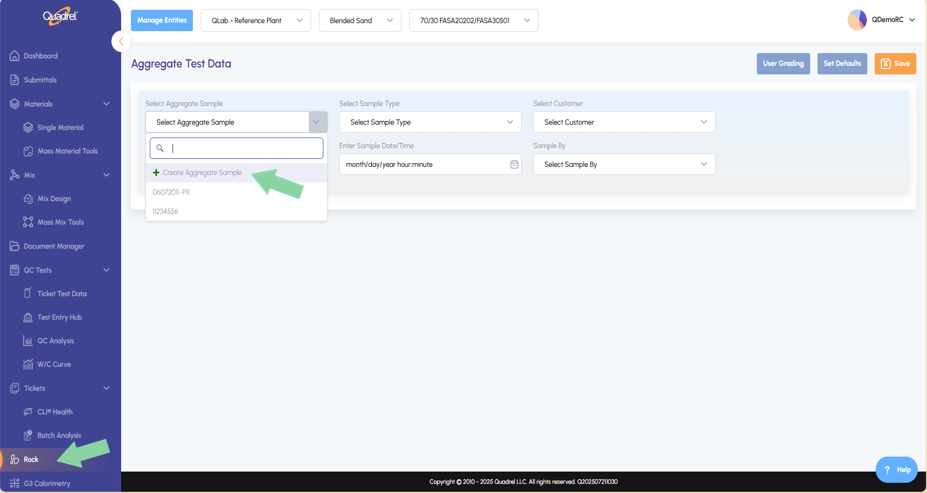
- Test Entry, users can view, edit, create new sieve and physical test results.
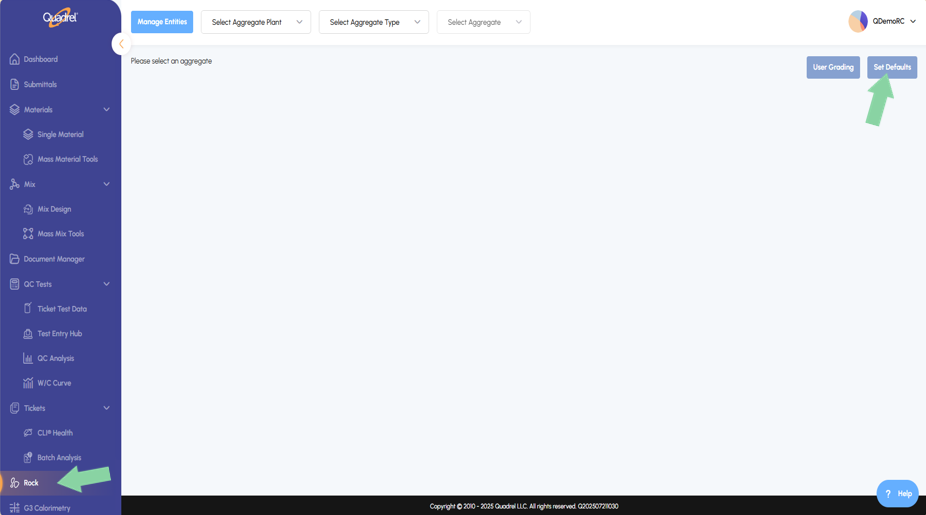
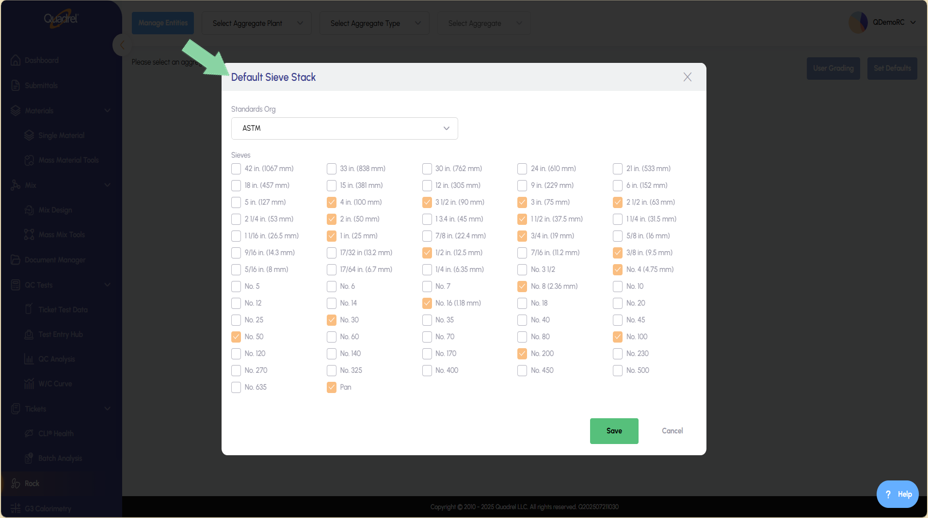
- Default Sieve Stack, if a user would like to add or remove a sieve from the list their company sees when doing data entry, you can set these via the method below. Note this is a companywide change, not just for the signed in user.
Select the desired standards organization and then the Sieves checkbox options will be made available to the user.
QC Analysis.
- Users will see a new graph type, Control Chart in the Chart section of QC Analysis.
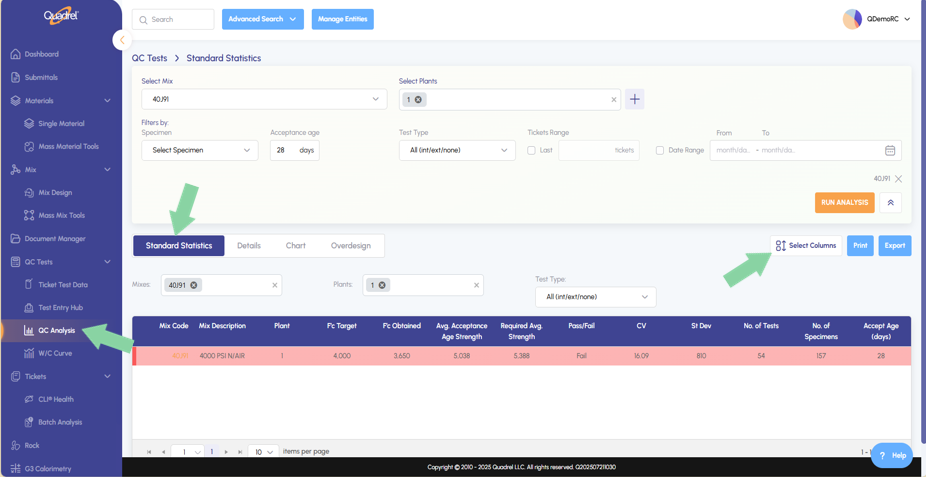
- The remaining Set Default Summary Columns from legacy Quadrel are now available in web Quadrel in the summary section of QC Analysis. Click on Select Columns from the standard statistics tab as shown in the screenshot below.
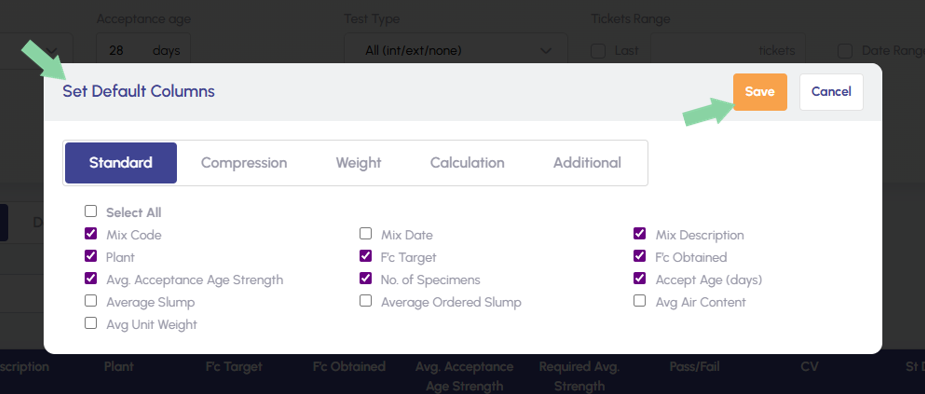
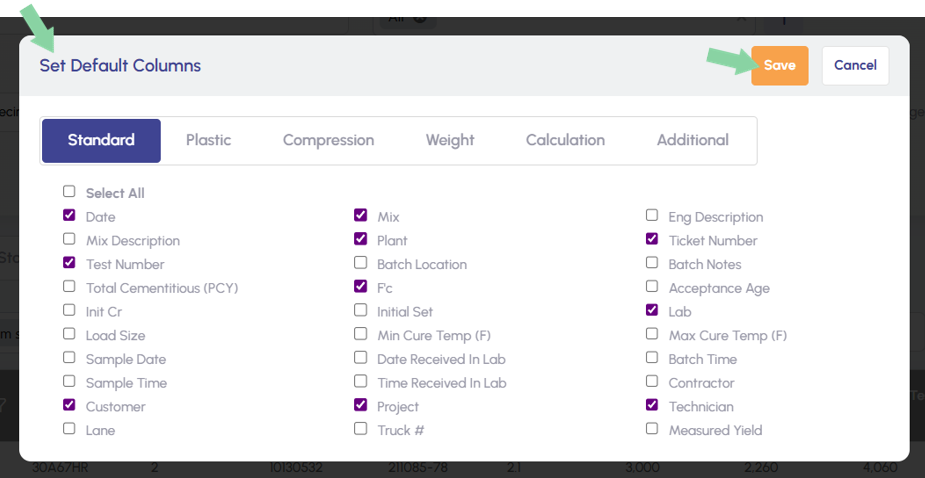
The set Default Columns form will open. Make desired changes as to which columns you would like to see and click save to apply the changes.
- The remaining Set Default Detail Columns from legacy Quadrel are now available in web Quadrel in the detail section of QC Analysis. Click on Select Columns from the Details tab as shown in the screenshot below.
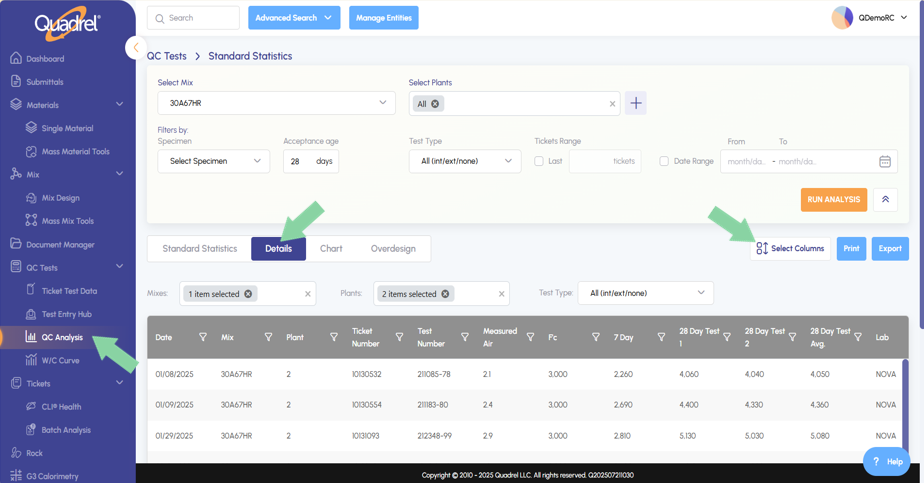
A similar set Default Columns form will open. Select the checkboxes of items you would like to see as column headers and click save to apply the changes.
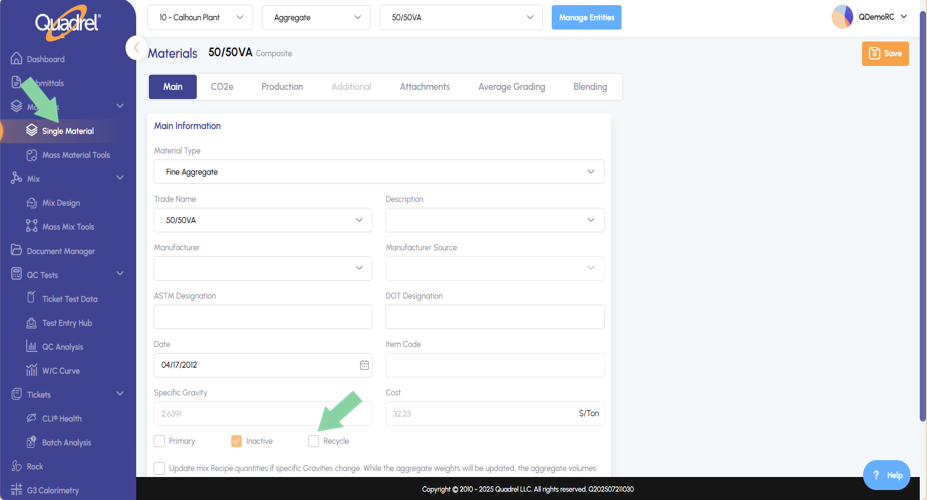
Single Material: Recycled Material.
- In single material, a checkbox has been added to the main tab allowing users to designate a material as recycled.
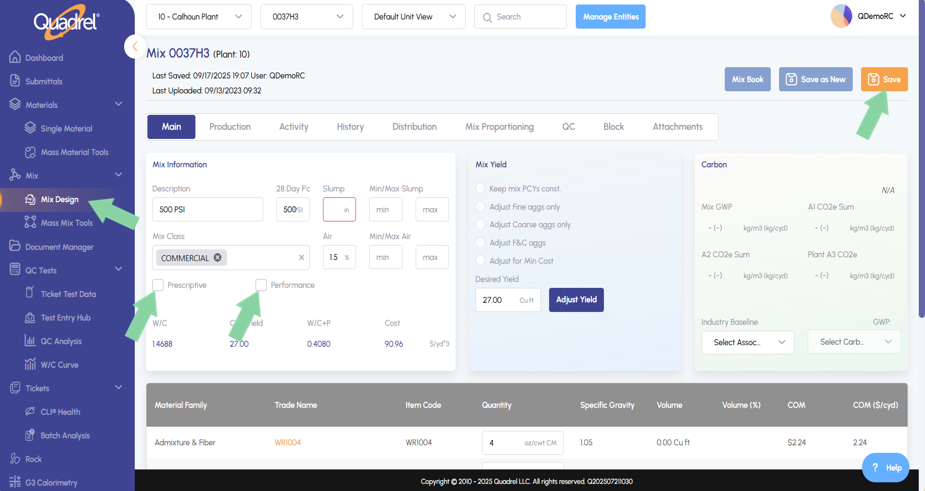
Mix Design.
- A user can assign a mix utilizing the checkboxes to be prescriptive, performance, both, or neither. Be sure to click save after making any intentional changes.
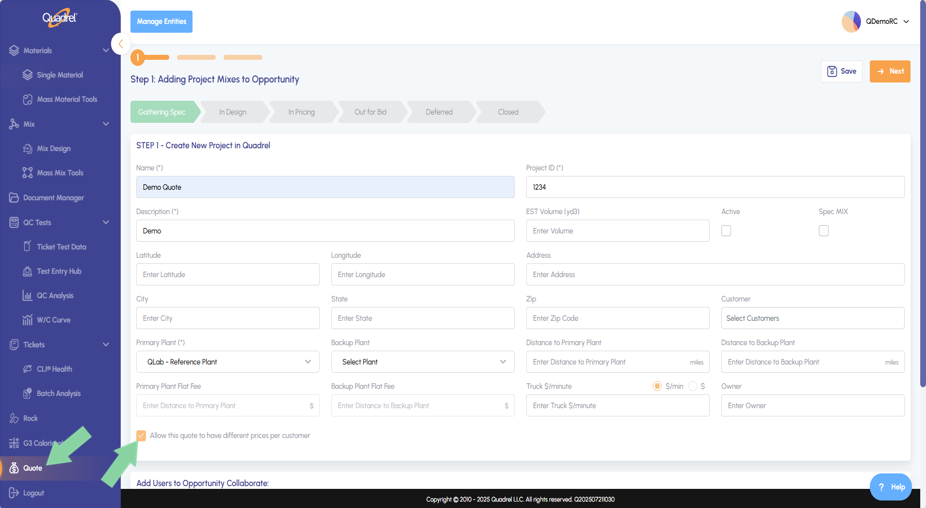
Quote.
- New feature allows quotes to be made for multiple customers with different prices. While creating a new quote or editing an existing quote, select the checkbox "Allow this quote to have different prices per customer".
TestIn.
- Users will now see improvements made to the TestIn grid. The Quadrel software will now hide unused columns from current imports, reducing the number of blank columns for the user to navigate through. Additionally, the columns have been organized making it more user friendly. As example, all 4x8 cylinder test data is now grouped together, and all 6x12 cylinder test data will be grouped together.
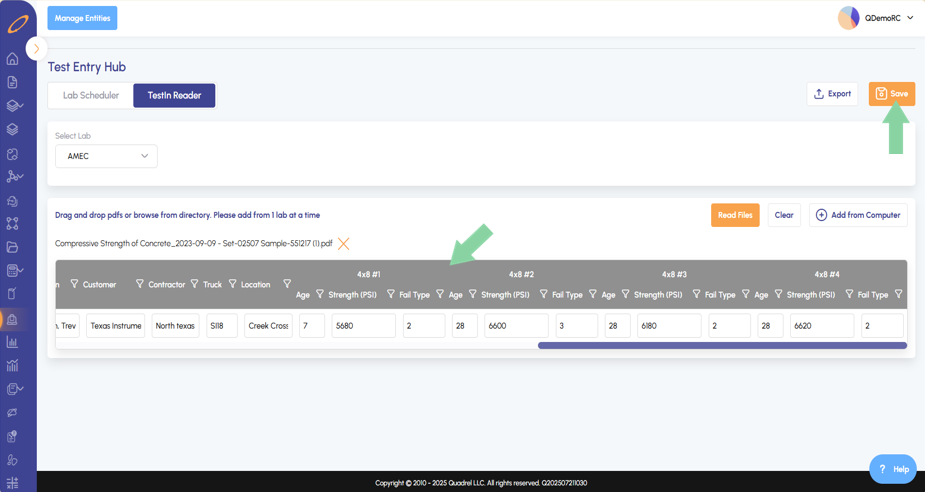
After the user saves their uploaded test data, success and failure tabs will be shown. If an error is given, review the status column in the failures tab to easily identify the issue with the uploaded data. After correcting the issue, click save to move the uploaded test data to the success tab.