05/01/2026 Release: Alt Mix Codes, Labeled Inactive Mixes, Speed Improvements, etc.
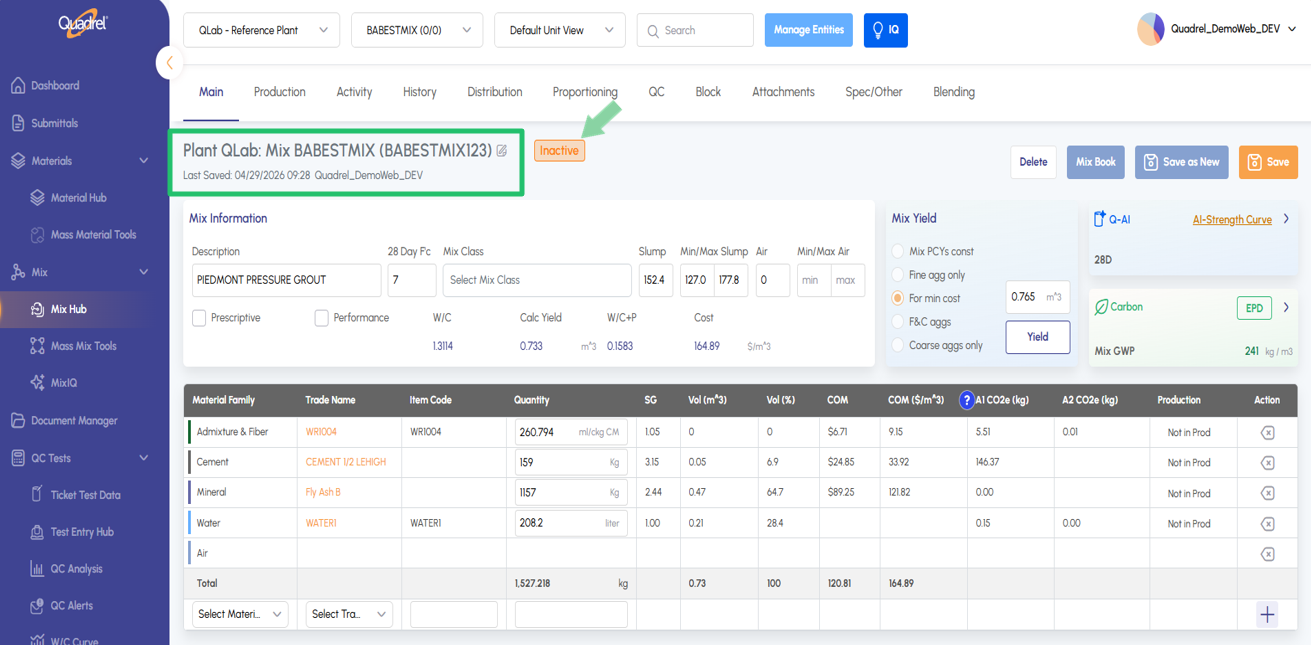
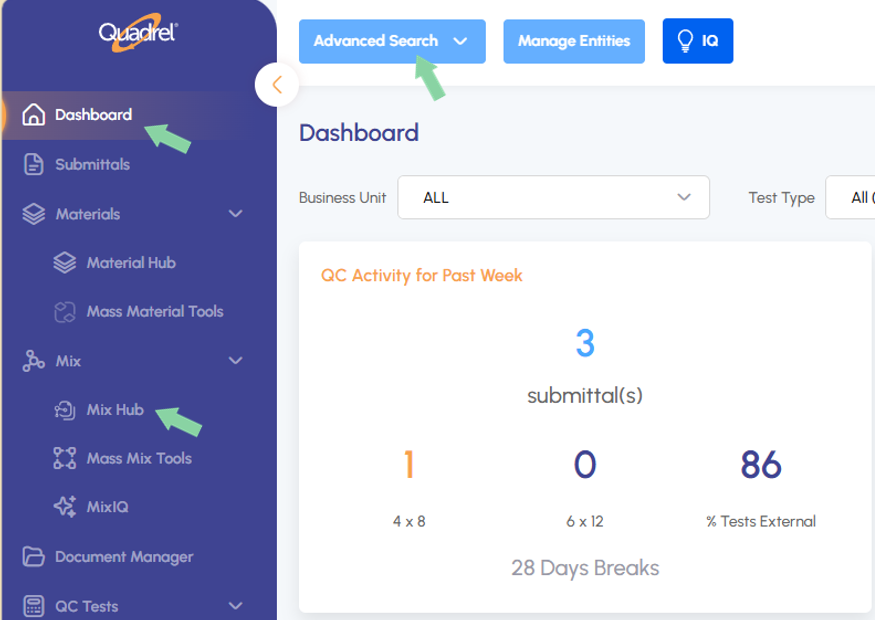
Mix Hub: Label Inactive Mixes Deactivated mixes now remain visible in the Mix Hub dropdown rather than disappearing entirely. Selecting an inactive mix displays a clear label so users always know its current status at a glance. Inactive mixes can still be hidden if desired within User Options.
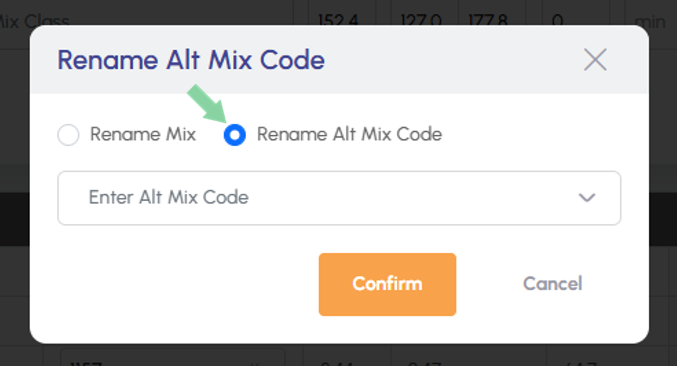
Mix Hub: Alternative Mix Code Users can now create, assign, and edit alternative mix codes on any existing mix — giving teams more flexibility in how they identify and reference mixes across workflows.
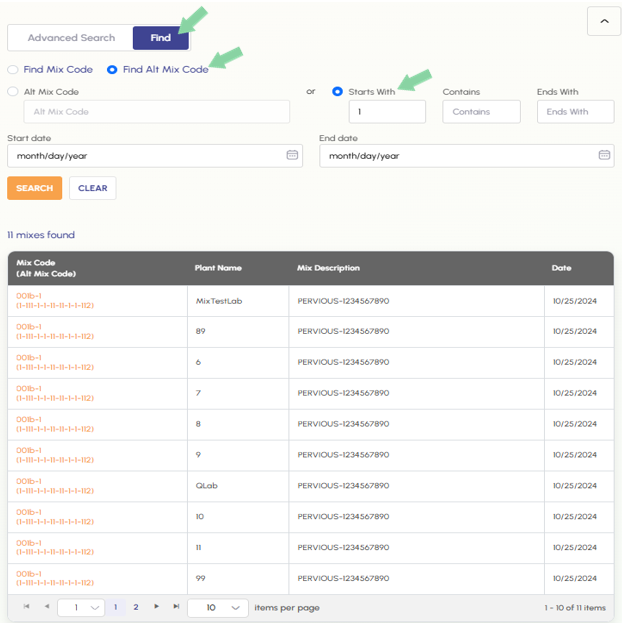
Advanced Search: Find Alt Mix Code A new radio button option in the Advanced Search Find tab lets users search mixes directly by Alternative Mix Code, making it faster to locate mixes when the primary code isn't at hand.
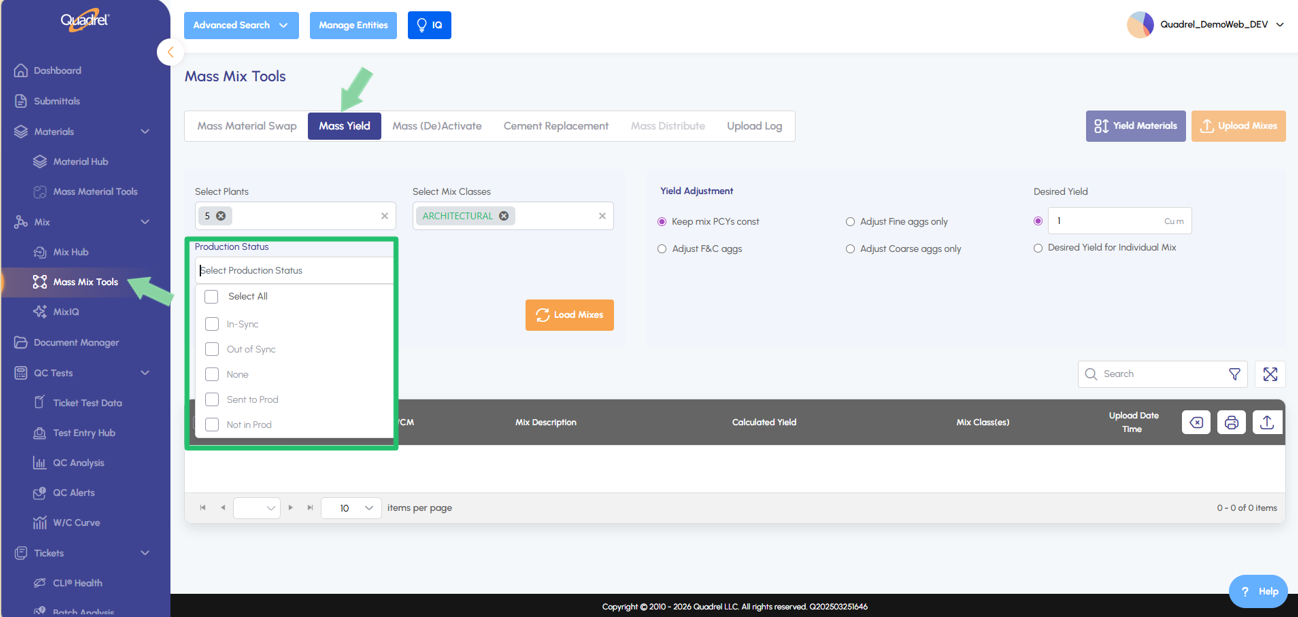
Mass Yield: Production Status Filtering A new production status filter in the Mass Mix Tools Yield tab ensures only mixes meeting the required production status are loaded for mass yielding — reducing risk of error and keeping workflows on track.
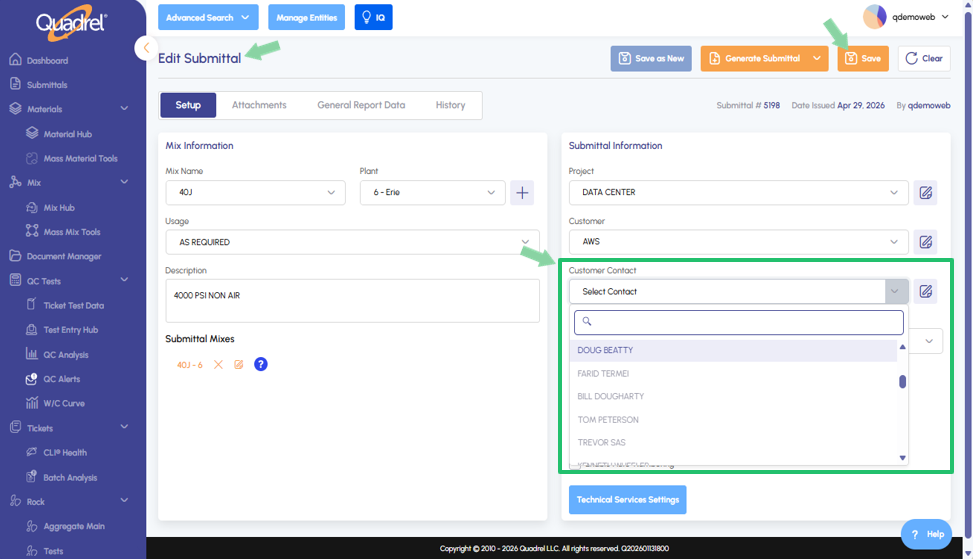
Submittals: Select Customer Contact When creating or editing a submittal on the web, users will now select the Customer Contact from a dropdown of existing contacts. New contacts can be added as needed under the Entities menu, on the Contacts tab.
When a user deactivates a mix in web Quadrel the mix will now remain in the mix hub dropdown menu. When the mix is clicked the user will then see a label denoting the mix as inactive.
Mix Hub: Alternative Mix Code.
User can now create and assign alternative mix codes to an existing mix. Additionally, users can now edit existing alternative mix codes.
Advanced Search: Find Alt Mix Code.
User can now create and assign alternative mix codes to an existing mix. Additionally, users can now edit existing alternative mix codes.
Mass Yield: Production Status Filtering.
User will notice a new field to filer by production status in mass mix tools, mass yielding tab. Now users can only load mixes to mass yield that meet the expected production status.
Submittals: Select Customer Contact.
When creating or editing a submittal on the web, users will now select the Customer Contact from a dropdown of existing contacts. New contacts can be added as needed under the Entities menu, on the Contacts tab.
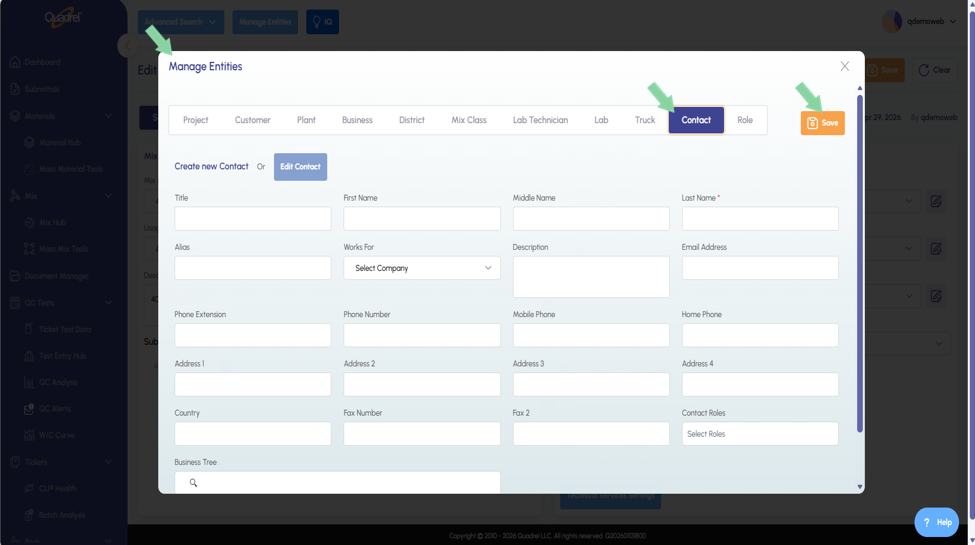
New Contacts can be created by clicking the Manage Entities button. Switch to the Contact tab and create new by filling in the details and clicking save. Additionally, users can click "Edit Contact" and make changes to an existing contact then save once done. This contact will be available for use in submittals after saving.
User accounts with larger databases will notice a great improvement in loading times while navigating the Mix Hub, QC Dashboard, and Advanced Search tool.