02/10/2026 Release: Mix Rename, Cementitious Replacement, Cost Simulation, etc.
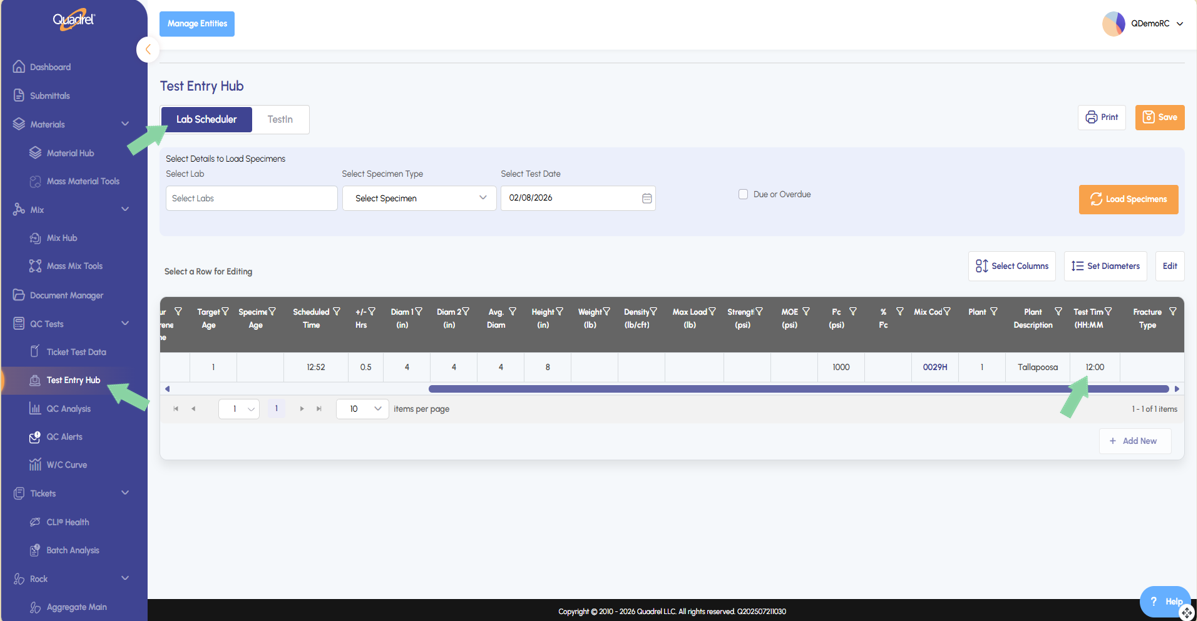
Lab Scheduler: Default Test Time When creating a batch ticket, if default test time is not specified it will be inserted as noon (12:00) for this field.
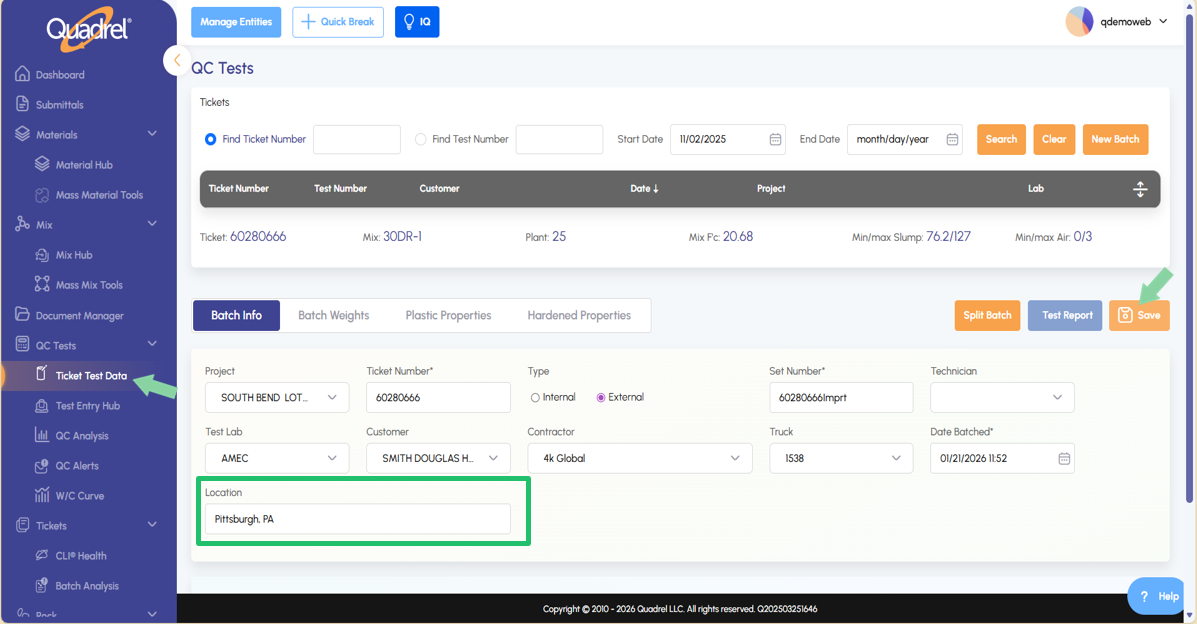
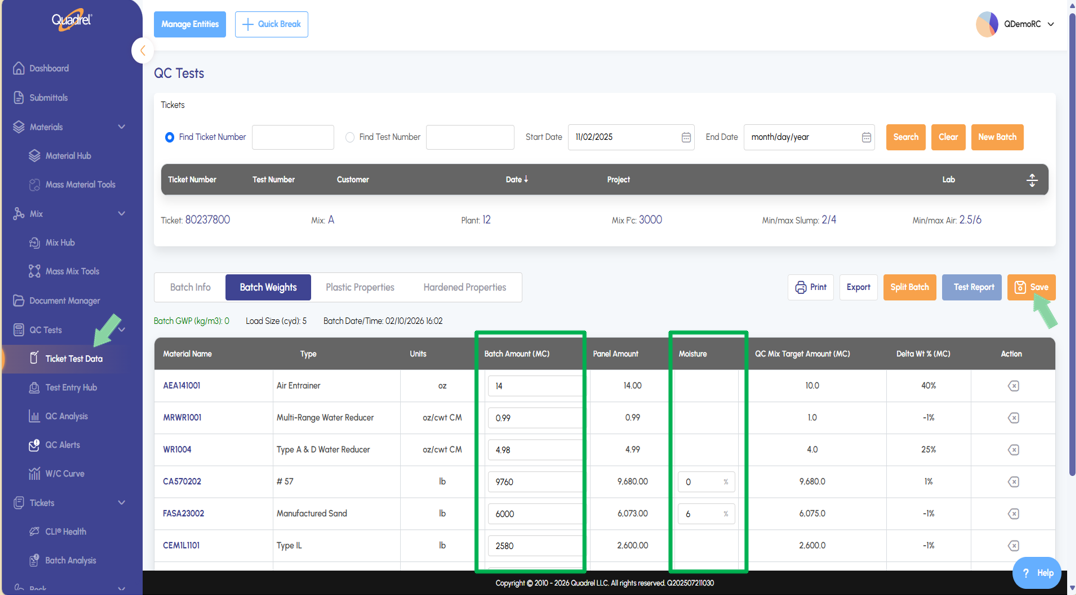
Ticket Test Data: Location While entering ticket test data, user can now save location if desired within the ticket. Ticket Test Data: Batch Weights In ticket test data, the batch weights tab was previously read only. Users will now find that moisture and batch weights are editable.
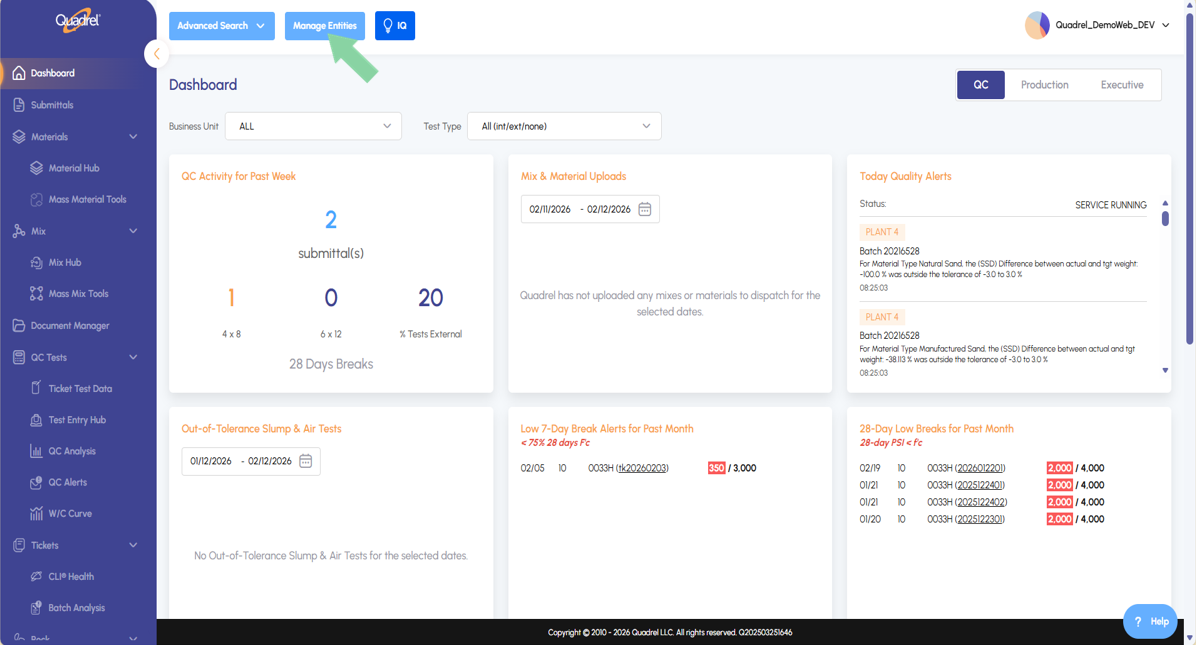
Manage Entities: New Additions After entering the Manage Entities form, users will now see several new tabs added. Quickly add or edit all entities in one place.
Mass Mix Tools: Cementitious Replacement Mass Mix Tools now has a new tab for cementitious replacement. Here users can swap minerals and change the P Fraction P/(C+P) for one or many mixes.
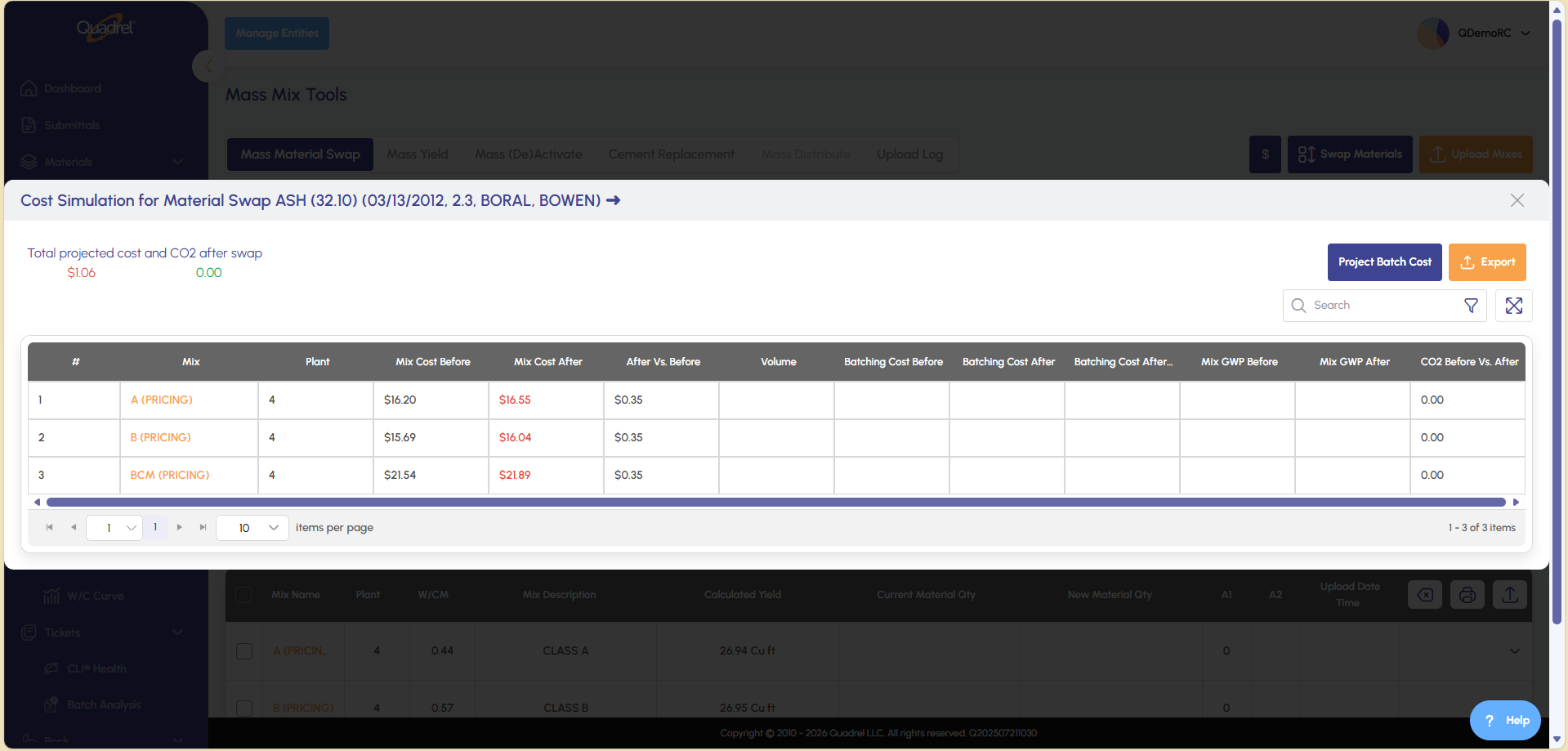
Mass Mix Tools: Cost Simulation Mass Mix Tools now has a cost simulation button available for users to preview cost and carbon impact before performing any swaps.
Lab Scheduler: Default Test Time.
When creating a batch ticket, if default test time is not specified it will be inserted as noon (12:00) for this field.
Ticket Test Data: Location.
Users can now input and attach a location to a ticket in web Quadrel. In the screenshot below, notice the location field at the bottom of the Batch Info tab. Be sure to click save after making any changes to your tickets.
Ticket Test Data: Batch Weights.
In ticket test data, the batch weights tab used to be read only. Users will now find that moisture and batch weights are editable.
The two editable columns are shown in the image below. Be sure to click the save button after making any changes.
Manage Entities: New Additions.
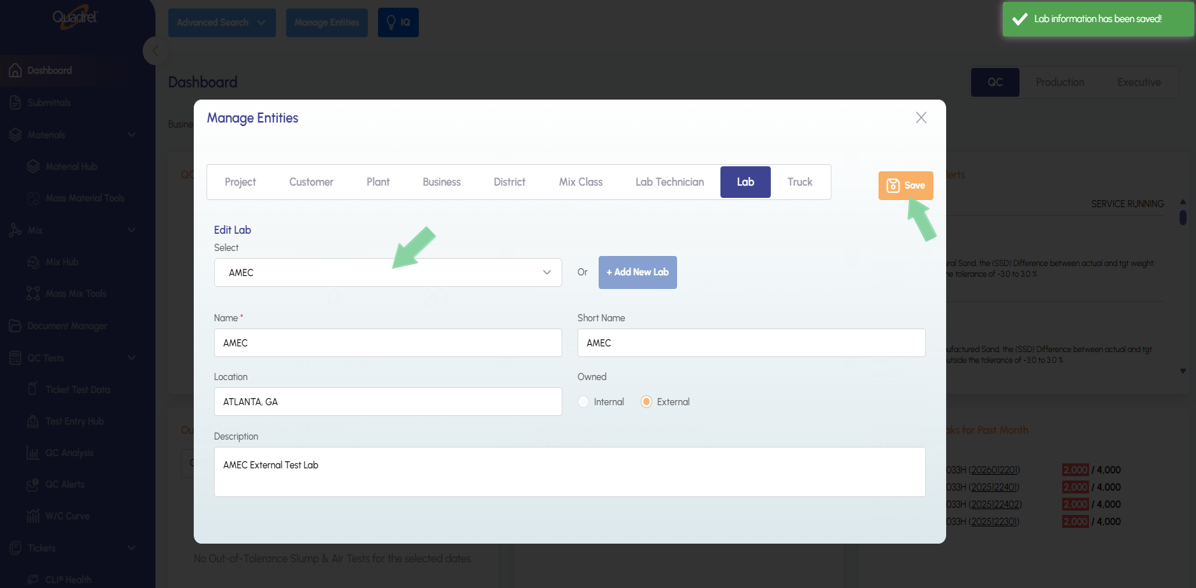
After entering the Manage Entities form, users will now see several new tabs added. Quickly add or edit all entities in one place by clicking the manage entities button shown in the image below.
A form will pop up, and users can quickly switch between tabs. In the example below I have selected an existing entity from the dropdown menu, added a location and saved the updated entity.
To add new, go to the tab corresponding to the new entity needed. Click the "Add New" button. Populate the form as desired and then click save. The new entity can then be found in the dropdown menu.
Mix Hub: Mix Rename.
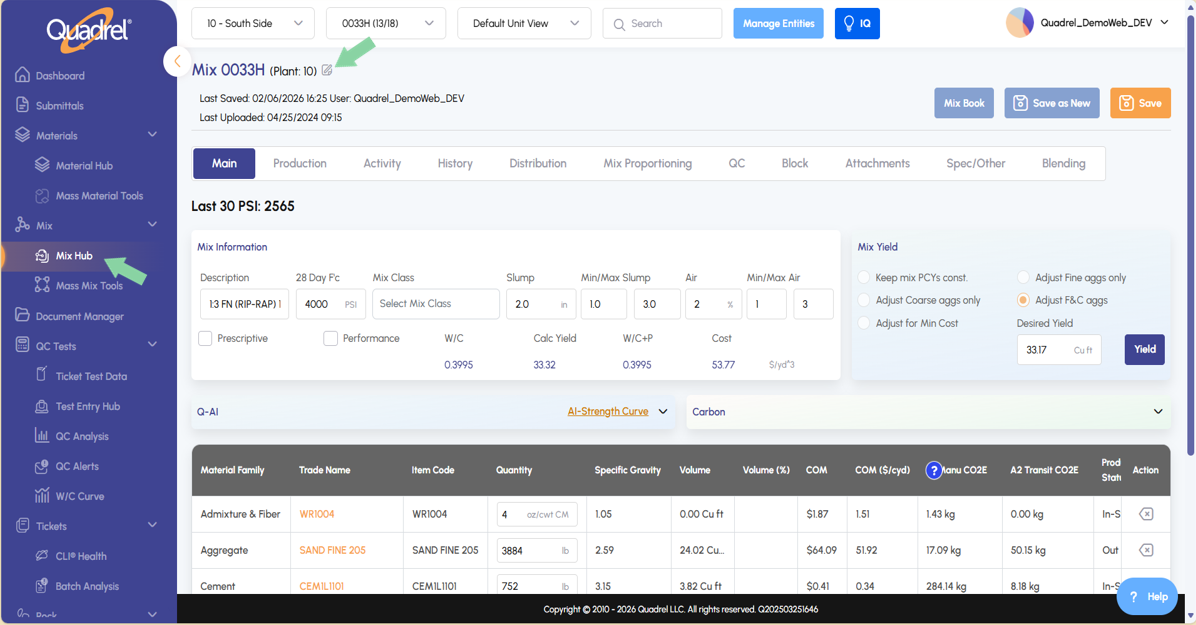
In the mix hub users can now rename mixes. Open the desired mix to rename and then click the icon in the screenshot below next to the mix and plant name.
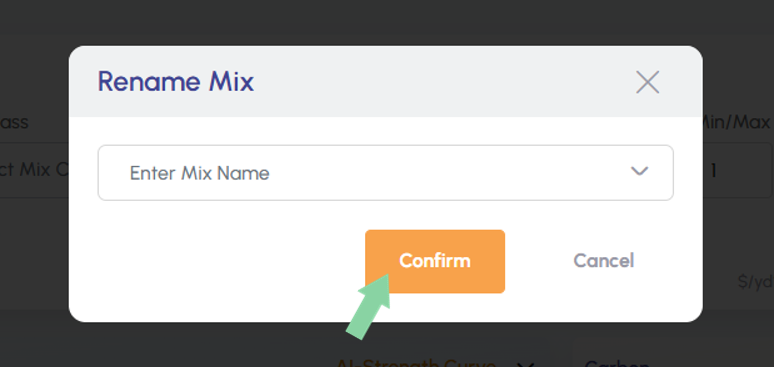
A rename mix form will open, users can either type in a new mix name or select and existing name from the dropdown menu. When you are finished renaming the mix, click confirm.
Mass Mix Tools: Cementitious Replacement.
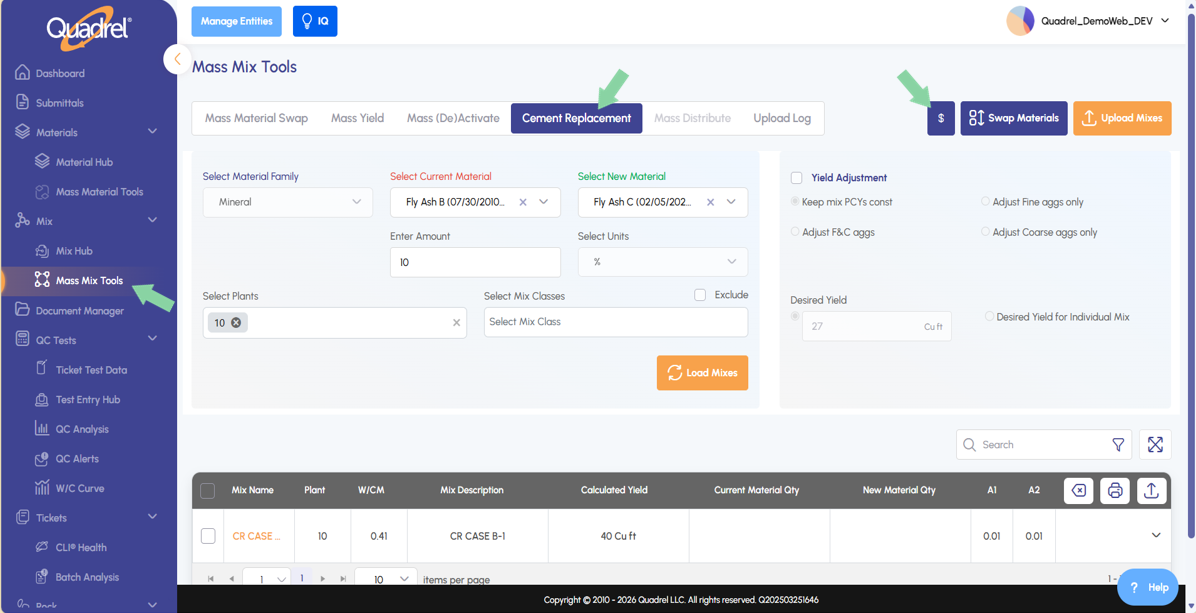
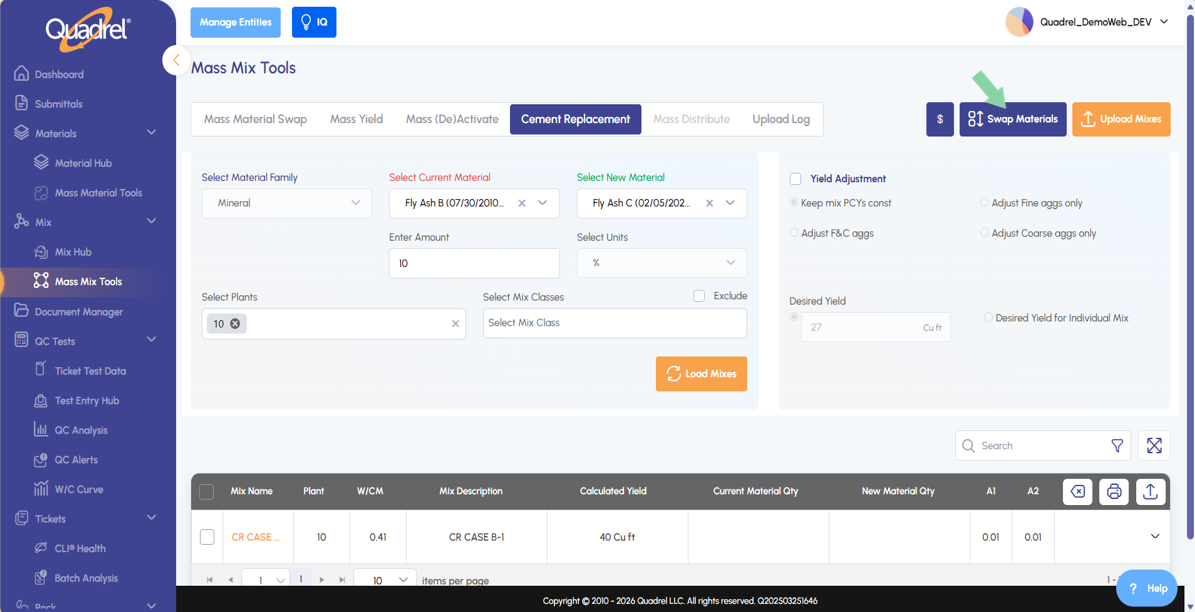
Users will notice a new tab in mass mix tools named Cement Replacement. Here users can mass swap out minerals between specified mixes.
In the example shown below we are swapping out Fly Ash B for Fly Ash C at 10% of the total cementitious in the loaded mix.
To load mixes, select the corresponding plant and add a mix class to help refine the search if applicable.
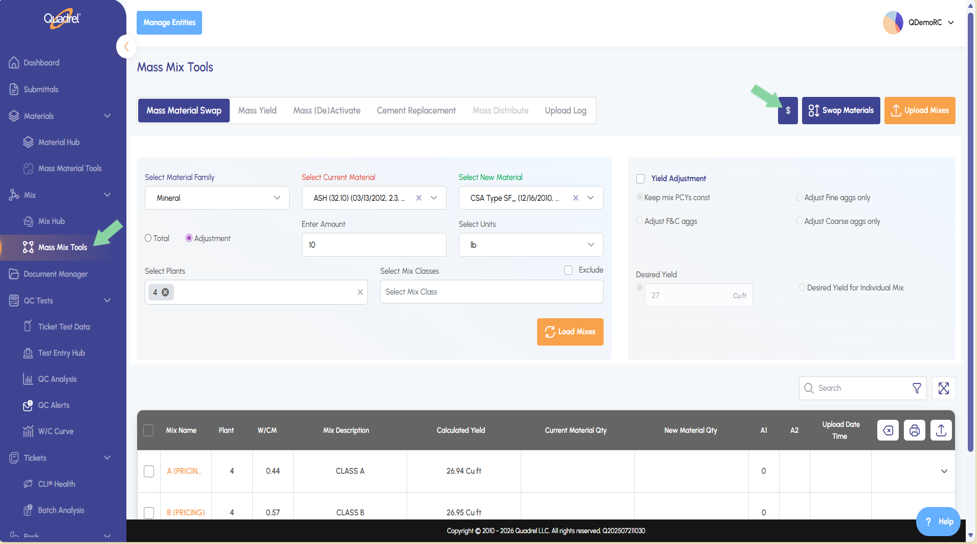
If cost change impact is a concern, click the button with a dollar sign on it as shown in the image below.
When the swap has desired mixes loaded and settings configured to meet user needs click the swap materials button shown in the image below.
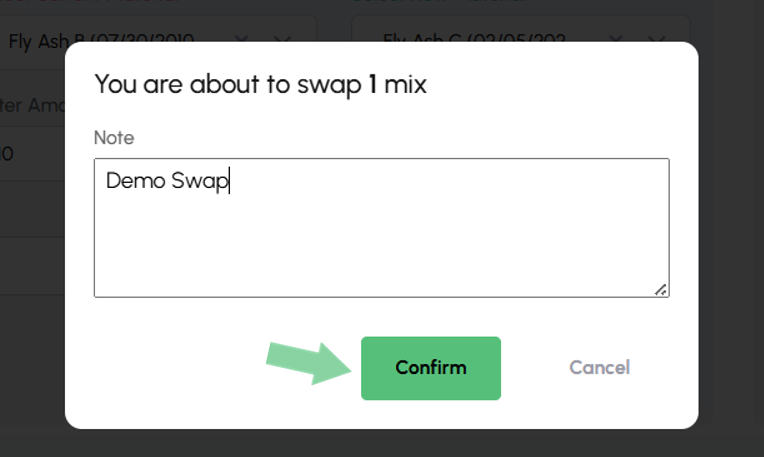
A confirmation form will show, the user needs to enter in a message which will be logged in the selected mixes activity tab. When ready to finalize the swap, click confirm.
Mass Mix Tools: Cost Simulation.
Mass Mix Tools now has a cost simulation button available for users to preview cost impact before performing any swaps.
In Mass Mix Tools, notice the blue button with a dollar sign icon on it as shown in the image below.
Click the Dollar button to open the cost simulation preview. Total projected swap cost and CO2 after swap impact will be shown. Users can then project batch cost if desired or export the table to an excel sheet.